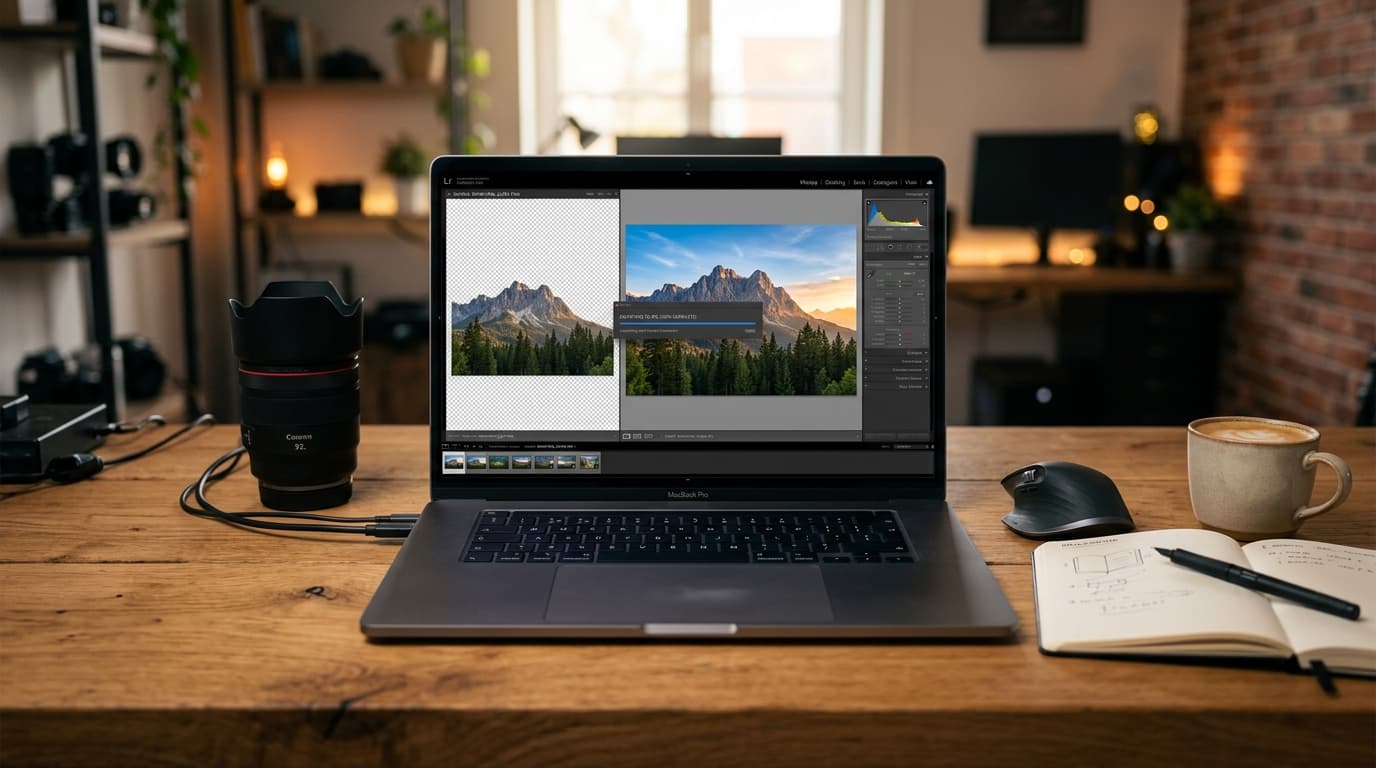
A photographer friend of mine recently tried to upload twenty portfolio images to an online contest. The submission portal immediately kicked back an angry red error message: *“File exceeds maximum limit of 2MB per upload.”*
She was confused. Each picture was exported as a standard PNG from her editing canvas — but because PNG stores every single pixel without lossy compression, each 24-bit photograph was weighing in at a hefty 12MB to 16MB. We threw those files into a free PNG to JPG converter, saved them at a clean 90% quality setting, and watched those 15MB giants collapse into crisp 950KB JPGs. The contest accepted every single one in less than two minutes.
If you are dealing with bloated upload sizes, email attachment walls, or picky government and job portals that flat-out refuse .png files, this guide explains exactly how a PNG to JPG converter works, when converting makes sense, when you should keep your PNGs intact, and how to avoid the dreaded black background glitch.
Pro Tip
Need a fast conversion right now? Open the free PNG to JPEG Converter on PdfPixels. Upload your PNG, let the browser convert it instantly at high quality, and download your lightweight JPG. No software install, no sign-up, and no watermarks.
---
What Does a PNG to JPG Converter Actually Do?
At its core, a PNG to JPG converter takes the uncompressed or losslessly compressed raster pixel data inside a Portable Network Graphics (.png) container and translates it into a Joint Photographic Experts Group (.jpg or .jpeg) container using discrete cosine transform (DCT) lossy compression.
Here is what happens during that translation:
- Pixel Analysis & Color Transformation: The converter scans your image's RGB pixel matrix and converts it to a luminance/chrominance color space (YCbCr), prioritizing light data that human eyes notice over subtle color variations we barely register.
- Lossless to Lossy Compression: While PNG keeps every byte of raw data via the Deflate algorithm, JPG discards imperceptible high-frequency visual details to shrink file weight drastically.
- Alpha Channel (Transparency) Flattening: PNG supports a 4th channel (Alpha) for transparent backgrounds. Because the standard JPG specification does not support transparency, the converter fills any transparent pixels with a clean solid color (typically solid white).
---
When You SHOULD Convert PNG to JPG
Not every image belongs in a PNG container. Converting PNG to JPG delivers massive advantages in four specific scenarios:
1. Real-World Photographs and Complex Renders
Camera snapshots, travel photos, portraits, and digital paintings contain hundreds of thousands of continuous tonal gradients and subtle color shifts. PNG is notoriously inefficient for continuous-tone photography. A 12-megapixel phone photo saved as PNG is frequently 15MB to 25MB, whereas the identical image saved as a high-quality JPG is only 1.5MB to 3.5MB with zero visible loss at normal viewing distances.
2. Strict Upload and Attachment Limits
Government visa forms, university portals, job application sites, and tax filing systems frequently enforce hard file size caps (often under 2MB, 1MB, or even 200KB) and specifically whitelist only .jpg and .jpeg extensions. If your resume scan or passport photo was captured as a PNG, converting to JPG is the fastest way to get past the validator.
- Need a tight size target? After converting, run your JPG through our Compress Image tool or read our guide on how to compress files under 1MB.
3. Website Performance and Core Web Vitals
If you run an e-commerce store, a photography blog, or a portfolio, serving 8MB PNGs directly to mobile visitors crushes your Largest Contentful Paint (LCP) score and burns user mobile data. Swapping hero photos and product galleries from PNG to JPG or WebP slashes page weight by 70% to 90%, boosting SEO rankings and user retention.
4. Email Attachments and Shared Office Decks
Email providers like Gmail enforce a 25MB total message cap. Embedding five 8MB PNG screenshots in a PowerPoint or email quickly breaks the limit. Converting those images to lightweight JPGs keeps the entire deck slim and easy to send.
---
When You Should NEVER Convert PNG to JPG
Converting from PNG to JPG is a one-way street with lossy compression. Keep your original PNG in the following cases:
- Logos and Brand Graphics: Logos with clean geometric shapes, flat color fills, and sharp edges will develop fuzzy “halos” (mosquito noise) around hard borders when compressed with JPG.
- Images Requiring Transparent Backgrounds: If you need a product cutout floating on a website background or an overlay for a video thumbnail, JPG will fill that background with solid color. Use our Remove Background tool or keep the PNG format.
- Screenshots of Code, Text, or Spreadsheets: Thin font strokes and UI lines look crisp in PNG. JPG compression often makes small typography look smeared and difficult to read.
- Assets You Intend to Edit Repeatedly: Every time you open, edit, and re-save a JPG, it undergoes another round of lossy re-compression (generation loss). Always keep your master file as a PNG or raw format, and export to JPG only when you are ready to publish.
---
The Transparency Trap: What Happens to Empty Pixels?
The single biggest surprise people encounter when using a PNG to JPG converter is what happens to transparent areas.
Warning
Important Transparency Notice: The JPG image format has no alpha channel. When you convert a transparent PNG (like a cutout or floating icon) to JPG, all transparent pixels must be rendered as a solid background color.
On PdfPixels, our PNG to JPEG converter cleanly composites transparent pixels against a standard crisp white background so your subject remains clear and legible. However, if your graphic contains white text or white elements against a transparent background, converting to a white-backed JPG will make those white elements invisible!
If you need to preserve transparency on a web page while still reducing file size, consider converting to WebP instead of JPG.
---
Step-by-Step: How to Convert PNG to JPG Online for Free
Converting your images on PdfPixels takes just a few seconds and requires zero software installation:
Step 1: Open the Converter Tool
Navigate to the free PNG to JPEG Converter on PdfPixels in any browser on desktop, iPhone, iPad, or Android.
Step 2: Upload Your PNG File
Click Choose File or drag and drop your PNG directly into the upload box. You can upload high-resolution camera exports, screenshots, or design assets.
Step 3: Instant Client-Side Conversion
The converter processes your image locally in your browser for maximum privacy and speed. Your pixels are processed directly without uploading sensitive documents to an unknown remote server.
Step 4: Preview and Download
Inspect the converted image and click Download JPG. Your new file is immediately saved with universal .jpg compatibility and a dramatically smaller file footprint.
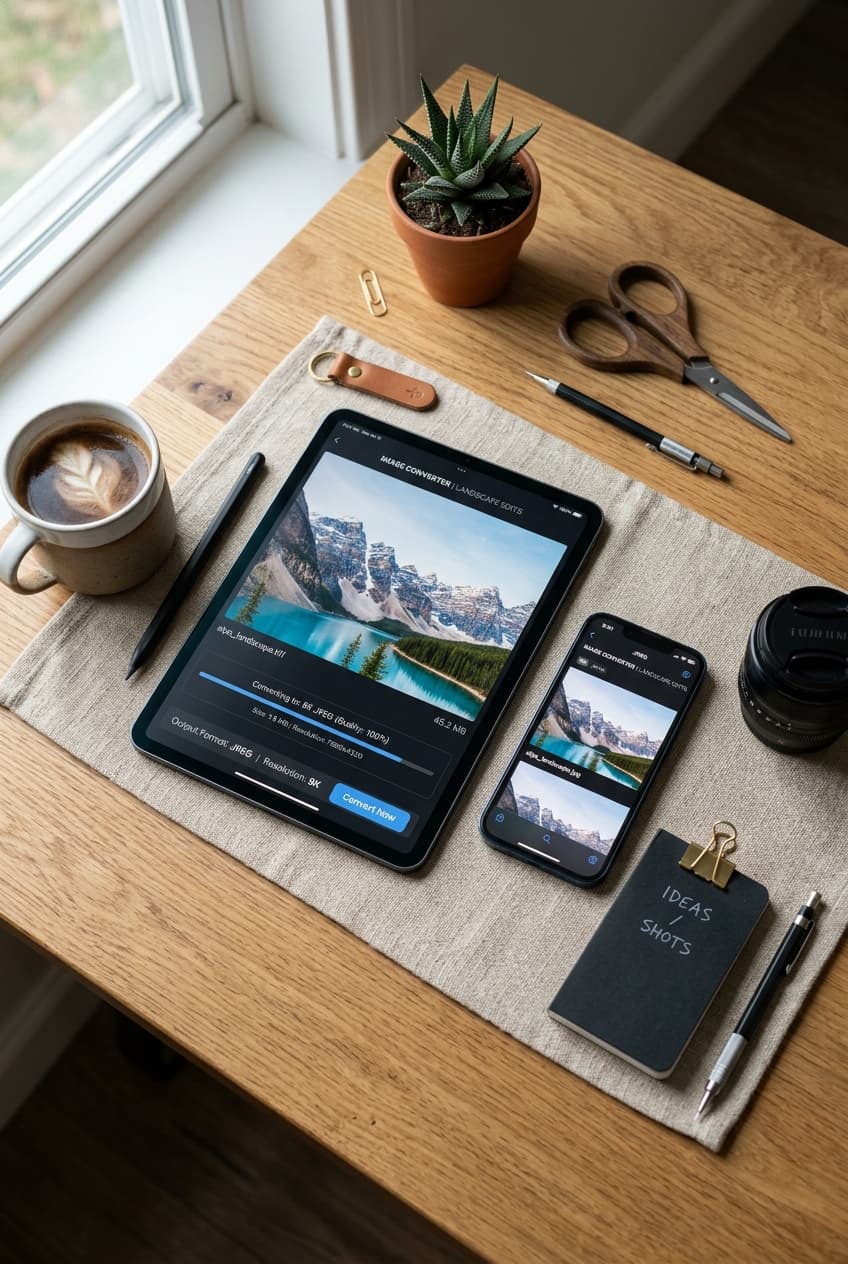
Visual workflow showing how a PNG to JPG converter reduces file size while maintaining crystal clear resolution
---
Real-World File Size Benchmarks: PNG vs. JPG
To see the real-world impact of converting different types of images, we ran several sample files through the PdfPixels engine. Here are the actual before-and-after results:
| Image Type | Original PNG Size | Converted JPG @ 92% Quality | Converted JPG @ 80% Quality | Size Reduction |
|---|---|---|---|---|
| 4K Landscape Photo | 16.4 MB | 1.8 MB | 840 KB | 89% – 94% smaller |
| DSLR Portrait Headshot | 11.2 MB | 1.2 MB | 610 KB | 89% – 95% smaller |
| High-Res Product Photo | 8.7 MB | 940 KB | 480 KB | 89% – 94% smaller |
| Smartphone Document Scan | 5.3 MB | 680 KB | 390 KB | 87% – 92% smaller |
| App Screenshot with UI Text | 1.4 MB | 620 KB | 380 KB | 55% – 72% smaller |
| Flat Vector Logo (3 Colors) | 140 KB | 195 KB | 130 KB | *PNG is smaller & sharper!* |
Note
Notice the last row: for simple flat-color graphics, vector badges, and minimal icons, PNG is actually smaller and sharper than JPG. Converting is only recommended for complex photographs, scans, and detailed textures.
---
How to Convert Without Losing Visual Quality
The common fear with lossy formats is “will my image look blurry or pixelated?” The answer depends on how you handle the conversion:
- Always Convert from the Original Master: Never convert an image that has already been compressed three times through WhatsApp, Facebook, or a screenshot tool. Start with the highest-resolution PNG you have.
- Use an Optimal Quality Sweet Spot (85% – 92%): Converting at 85% to 92% quality achieves a 80%+ file size reduction while remaining visually indistinguishable from the lossless original under 100% zoom.
- Resize Pixel Dimensions If Targeting Strict Caps: If you need to hit a strict 200KB upload limit for an ID photo or portal, do not crush the JPG quality slider down to 30%. Instead, use our Resize Image tool to reduce the physical pixel dimensions (e.g. from 4000px wide to 1600px wide), then save at high quality.
- Fix Blurry Originals Before Converting: If your starting image was slightly out of focus or noisy, run it through our AI Image Enhancer before converting (read our photo unblurring guide).
---
Next Steps in Your Image Workflow
Once you have converted your PNG into a clean JPG, you may need to prepare it for its final destination:
- Need to Combine Multiple Photos into a Document? If a portal asks for a single PDF containing all your pages, use our Image to PDF tool (read the JPG to PDF guide).
- Need to Convert Back to PNG? If you later need to add text or edit graphics losslessly, use our JPEG to PNG Converter.
- Need to Convert iPhone Photos? If you are working with Apple camera files, convert them using our HEIC to JPG Converter (read the HEIC to JPG guide).
- Need Print-Ready Resolution? Learn about print versus digital standards in our Image DPI Explained article.
---
Authoritative Standards & References
To learn more about the technical specifications of digital image compression, consult these industry reference standards:
- W3C PNG Specification (Second Edition) — Official international standard for Portable Network Graphics.
- Joint Photographic Experts Group (JPEG.org) — Information on standard ISO/IEC 10918-1 compression specifications.
- MDN Web Docs: Image File Formats Guide — Mozilla's comprehensive reference on browser support and compression characteristics.
- Google Web.dev Image Optimization Guide — Guidelines for optimizing Core Web Vitals and image payloads.
- Lossless vs. Lossy Compression on Wikipedia — Detailed mathematical explanation of data reduction algorithms.
---
Bottom Line
A PNG to JPG converter is one of the most useful utilities in your digital toolkit. Use PNG when you need transparent backgrounds, pixel-perfect logos, or crisp text screenshots. Switch to JPG whenever you need to email photo attachments, speed up website loading, or meet strict upload limits on government and corporate portals.
Convert your files in seconds for free with the PdfPixels PNG to JPEG Converter — fast, private, and always watermark-free.
Topics
PdfPixels Editorial
PdfPixels teamPublished by the PdfPixels technical writing and engineering team. All guides and technical tutorials undergo rigorous testing across Windows, macOS, iOS, and Android environments to guarantee accuracy and workflow reliability.
FAQFrequently Asked Questions
How do I convert a PNG to JPG for free without losing quality?
Upload your PNG to the PdfPixels PNG to JPEG converter. The tool converts the lossless pixel data into a high-quality JPG (around 90-92% quality setting) directly in your browser, maintaining crisp visual clarity while reducing file size by up to 90%.
What happens to transparent backgrounds when converting PNG to JPG?
Because the JPG format does not support an alpha transparency channel, all transparent areas are automatically filled with a clean solid background color (defaulting to white). If you must retain transparent cutouts, keep the file as a PNG or convert to WebP.
Is JPG smaller than PNG?
For real-world photographs, portraits, and complex gradients, JPG is almost always 70% to 90% smaller than PNG. However, for simple vector illustrations, logos with few colors, and small icons, PNG is often smaller and sharper.
Is JPG the same as JPEG?
Yes. JPG and JPEG refer to the exact same image format. The three-letter .jpg extension was originally created because early Windows operating systems (MS-DOS) required 3-character file extensions, while Unix and Mac systems used .jpeg.
Can I convert PNG to JPG on my iPhone or Android phone?
Yes. Open the PdfPixels PNG to JPEG tool in Safari, Chrome, or any mobile browser, tap upload from your Photo Library or Files app, and tap download to save your new JPG directly to your device.
Why did my PNG file size increase after converting to JPG?
If your original image was a very simple graphic with flat solid colors and minimal detail (like a black-and-white icon or simple line art), PNG's lossless Deflate compression is more efficient than JPG's discrete cosine transform blocks, which can add overhead to flat areas.
Is it safe to convert sensitive photos and documents on PdfPixels?
Yes. PdfPixels processes image format conversions locally in your browser using modern client-side Web APIs over HTTPS. Your files are not stored on remote servers, protecting your privacy.
How can I convert a JPG back to PNG?
You can convert any JPG back into a PNG anytime using our free JPEG to PNG tool. Keep in mind that while the container becomes lossless, any detail already lost during original JPG compression cannot be artificially recovered.