My cousin called me last month, mildly panicked. She'd photographed her daughter's birthday party on her iPhone 14, emailed the photos to her husband's Windows laptop — and none of them would open. "The files just have weird icons," she said. "Did something go wrong?"
Nothing went wrong. The photos were perfect. The problem had a name: HEIC.
If you've ever run into this exact situation — or you're trying to upload iPhone photos to a website that keeps rejecting them — you've landed in the right place. I'll walk you through what's actually happening, why it happens, and every practical way to fix it. No tech degree required.
💡 Pro Tip
In a hurry? Use the free HEIC to JPG converter at PdfPixels. Upload your photo, download a standard JPG in under 10 seconds. No account, no watermark, works on phone and desktop.
First, What Even Is a HEIC File?
HEIC stands for High-Efficiency Image Container. Apple switched iPhones to this format back in 2017 with iOS 11, and there was a pretty good reason: a HEIC photo takes up roughly half the storage space of a JPEG while looking just as good, sometimes better.
For people with 64GB iPhones crammed full of memories, that efficiency is a genuine lifesaver. Your phone can store twice as many photos without buying more storage.
The catch? HEIC is Apple's format. Windows doesn't natively understand it (unless you install a specific add-on). Most websites don't accept it. Older software hasn't even heard of it. And anyone not on an Apple device will see exactly what my cousin's husband saw — a broken file icon.
JPG (also written as JPEG — they're the same thing) has existed since 1992 and opens on literally every device, website, and application ever made. That's the gap we need to bridge.
The Fastest Method: Convert Online for Free
For the vast majority of people, an online converter is the best answer. No installation, no learning curve, and it works whether you're on a Windows PC, Mac, Android, or iPhone.
How to Convert HEIC to JPG Using PdfPixels
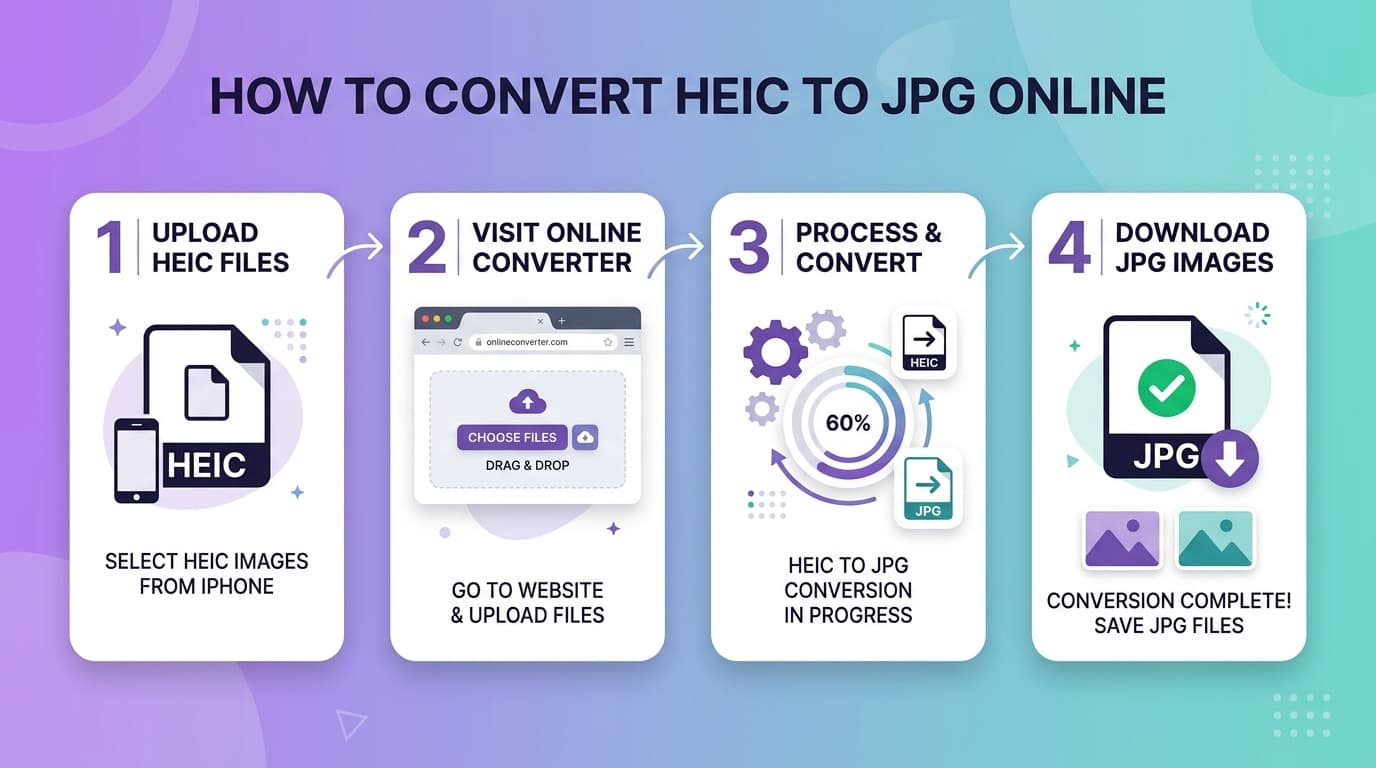
Step 1 — Open the converter
Go to the PdfPixels HEIC to JPG tool in any browser. The page loads instantly and the interface is intentionally simple.
Step 2 — Upload your HEIC file
You can drag and drop files directly from Windows Explorer or Mac Finder. Or click to browse your files. If you're on iPhone, tap the upload button and choose photos from your library — it'll pick them up in HEIC format automatically.
Step 3 — Wait about five seconds
The conversion happens right there in your browser. There's no uploading-to-a-server waiting game. The tool decodes your HEIC file locally and re-encodes it as a high-quality JPEG.
Step 4 — Download your JPG
Click download. That's genuinely it. Your new JPG file is full-resolution, properly compressed, and will open in absolutely any image viewer, photo editor, or website.
Converting Multiple Photos at Once
If you've got a whole album's worth of iPhone photos to deal with, you don't have to do them one by one. Select all your HEIC files during the upload step — the converter handles batches and lets you download everything at once.
This is especially useful when you've:
- Transferred a full iPhone camera roll to your Windows PC
- Got a mix of event photos to send to family members
- Need to upload a product photoshoot to an e-commerce platform
How to Convert HEIC to JPG on Windows
Windows 10 and Windows 11 don't open HEIC files by default. Here's how to handle this platform properly.
Option 1: Use an Online Tool (Recommended)
As covered above — quickest, requires nothing extra. Use the PdfPixels converter and you're done in under a minute.
Option 2: Install the Microsoft HEIF Extension
If you want your Windows PC to open HEIC files natively going forward, this is the right move:
- Open the Microsoft Store (search for it in the Start menu)
- Search for "HEIF Image Extensions" — it's made by Microsoft and it's free
- Click Install and wait for it to finish
- Now your Windows Photos app and File Explorer can open HEIC files directly
- To save as JPG: open the HEIC file in Photos, click the three-dot menu, choose Save a copy, and select JPEG format
The extension stays installed permanently, so every HEIC file you receive in future will just... work.
Option 3: Use Microsoft Paint (Surprisingly Effective)
Once the HEIF extension is installed:
- Right-click your HEIC file → Open with → Paint
- File → Save as → JPEG picture
- Choose where to save it and click Save
Paint isn't glamorous, but it's reliable for one-off conversions and preserves full image quality.
How to Convert HEIC to JPG on Mac
Mac users have it easier here — Apple's own ecosystem handles HEIC natively. You probably don't even realize your files are HEIC because Preview opens them without complaint.
Using Preview (Built-In, Zero Cost)
- Double-click the HEIC file to open it in Preview
- Go to File → Export
- In the Format dropdown, select JPEG
- Drag the quality slider — I'd recommend 85-90% for a good balance of quality and file size
- Click Save
Preview does an excellent job with HEIC exports. The quality difference from the original is genuinely undetectable at normal viewing sizes.
Importing Directly from iPhone as JPEG
If you're connecting your iPhone to your Mac via USB to import photos:
- Open Image Capture (find it via Spotlight search)
- Connect your iPhone and select it
- At the bottom of the Image Capture window, find the Format dropdown
- Set it to JPEG
- Import your photos — they'll arrive on your Mac already converted
This is arguably the cleanest workflow because the photos convert during import. You never even have HEIC files sitting on your Mac.
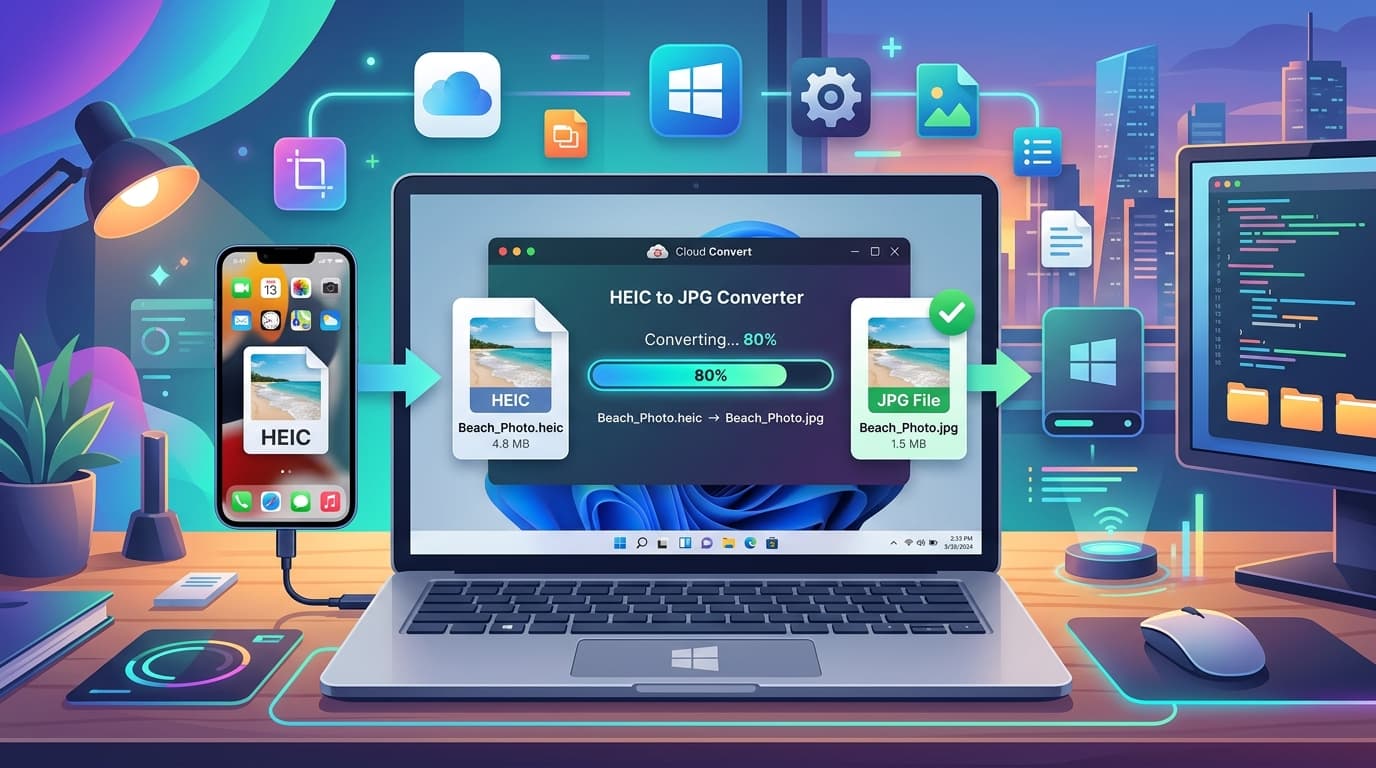
Step-by-step comparison showing HEIC file on left being converted to JPG file on right using PdfPixels online tool
Convert HEIC to JPG Directly From Your iPhone
Here's something many people don't know: you can convert HEIC photos on your iPhone itself, before transferring them anywhere.
Method 1: Change iPhone Transfer Settings
- Open Settings on your iPhone
- Tap Photos
- Scroll down to Transfer to Mac or PC
- Select Automatic instead of "Keep Originals"
With this setting, whenever you transfer photos to a computer via USB, iOS automatically converts HEIC to JPEG during the transfer. Your phone still saves in HEIC (preserving storage), but the files that land on your computer are already JPEGs.
Method 2: Switch Camera to JPEG Mode Permanently
If you'd rather your iPhone just take JPEG photos to begin with:
- Open Settings
- Tap Camera
- Tap Formats
- Select Most Compatible instead of "High Efficiency"
From this point on, every photo you take will be a JPEG. You'll use more storage, but zero conversion headaches, ever. Worth considering if you frequently share photos with Windows users or upload to websites.
HEIC vs JPG: Why JPG Still Wins for Sharing
Let's be direct about the comparison, because the internet has a lot of vague answers on this:
| Feature | HEIC | JPG |
|---|---|---|
| File size | ~50% smaller | Larger |
| Image quality | Equivalent or better | Excellent |
| iPhone/Mac support | Native | Native |
| Windows support | Requires extension | Built-in since forever |
| Web upload support | Rarely accepted | Universal |
| Social media | Sometimes OK on iOS apps | Always works |
| Professional software | Spotty | Universal |
| Email sharing | Can cause issues | Always works |
| Editing in older apps | Often unsupported | Always supported |
The bottom line: HEIC is genuinely the better format technically. But "better format" doesn't mean much when half the world can't open the files. JPG is the language everyone speaks.
Keep HEIC on your phone for storage efficiency. Convert to JPG when you need to share, upload, or use photos outside the Apple ecosystem.
Quality: What Actually Happens During Conversion?
This question comes up constantly: "Will my photos look worse as JPGs?"
Here's the honest answer. HEIC and JPEG use different compression methods. Converting requires decoding the HEIC file completely, then re-encoding it as JPEG. This process is called "generation loss" — you're compressing a compressed file, which theoretically degrades quality slightly.
In practice, at reasonable quality settings (85% and above), the difference is completely invisible to human eyes at normal viewing sizes. I've done side-by-side comparisons at 100% zoom and struggled to tell them apart.
What matters most is the converter's quality setting. PdfPixels uses 90-95% quality by default, which gives you an excellent result. If you later need to reduce the file size, use the separate Compress Image tool rather than converting at a low quality setting — this gives you much more precise control.
Real-World Use Cases
Job Application Forms and Government Portals
Government websites, job application portals, and university admissions platforms almost universally require JPEG or PNG. If you've photographed your documents or ID on iPhone, convert with the HEIC to JPG converter, then resize to the required dimensions using the Resize Image tool if the portal has specific pixel requirements.
Need a passport-sized photo for applications? Our Passport Photo tool handles the sizing automatically once you have your image in JPG format.
E-Commerce Product Photography
If you're photographing products on your iPhone for Shopify, Etsy, Amazon, or similar platforms, HEIC will get rejected. Convert to JPG first, then use the Remove Background tool to isolate your products on a clean white background — exactly what buyers expect to see.
Social Media and Professional Networks
Instagram, LinkedIn, Pinterest, and Facebook all work best with JPEG. While some apps have started accepting HEIC from iOS devices specifically, JPG is the only format guaranteed to work across all platforms, all devices, and all browsers — including when you share links and the platform generates preview images.
Pinterest specifically indexes image content for discovery, so clean high-quality JPGs with descriptive filenames and alt text perform significantly better than HEIC files.
Sending Photos by Email or WhatsApp
Gmail and Outlook handle HEIC fine on Apple devices, but the person receiving the email might be on Windows or Android. Convert to JPG before attaching to guarantee the photos open without issues. For large photo sets, our Compress Image tool can reduce file sizes before emailing without visible quality loss.
Common Questions (Answered Directly)
Can I convert HEIC to JPG without losing quality?
At 90%+ quality settings, yes — the difference is invisible at normal viewing sizes. PdfPixels uses high-quality output by default.
Is it safe to upload my photos to an online converter?
PdfPixels processes files locally in your browser — the actual conversion doesn't send your photos to any server. Your photos stay on your device throughout the entire process.
Can I convert HEIC on my Android phone?
Yes. Open the PdfPixels HEIC to JPG converter in Chrome on your Android, upload the HEIC files (maybe shared from AirDrop or iCloud), and download the JPGs.
How big will the JPG file be compared to HEIC?
Roughly 1.5x to 2x larger. A 3MB HEIC file typically becomes a 5-6MB JPEG at high quality. If you need smaller file sizes, compress after converting.
Will my EXIF data (date, location, camera settings) be preserved?
Most good converters preserve EXIF data during conversion. PdfPixels retains all original metadata from your HEIC files in the output JPEGs.
The Workflow I Actually Recommend
After helping dozens of people with this exact problem, here's the setup I suggest:
- Keep your iPhone on High Efficiency mode — preserve your storage
- Set "Transfer to Mac or PC" to Automatic — photos convert on transfer via USB
- Bookmark the HEIC to JPG converter — for everything else (email sharing, website uploads, etc.)
- For frequent sharers: consider switching iPhone camera to "Most Compatible" permanently
This combination means you never deal with HEIC headaches while keeping maximum efficiency on your phone itself.
Wrapping Up
HEIC is a genuinely good format. Apple made the right call adopting it for storage efficiency. But "good format" and "universally compatible format" are two different things, and until the world catches up to HEIC support, JPG is the universal language you need for sharing.
The PdfPixels HEIC to JPG converter is the fastest fix — free, no installation, works on any device, converts in seconds. Pair that with the right iPhone settings, and this stops being a recurring problem.
Need more image help? Check out our guides on compressing images for email, removing backgrounds from product photos, and our complete toolkit of free image tools.
Topics
FAQFrequently Asked Questions
How do I convert HEIC to JPG for free?
The fastest free method is using an online converter like PdfPixels HEIC to JPG. Open the tool in any browser, upload your HEIC file (single or multiple), and download high-quality JPEG files in under 10 seconds. No account required, no watermarks, no software installation needed.
Why can't anyone open my iPhone photos?
Your iPhone saves photos in HEIC format by default — a format Apple adopted for better storage efficiency but which isn't natively supported on Windows PCs, most websites, or Android devices. The fix is either converting the HEIC files to JPG using a free online tool, or changing your iPhone's camera settings to 'Most Compatible' to save as JPEG instead.
Does converting HEIC to JPG reduce photo quality?
Very minimally, and at high quality settings it's completely invisible at normal viewing sizes. A good converter uses 90%+ JPEG quality output, which preserves all visible detail from your original HEIC photo. The theoretical quality difference only becomes apparent at extreme zoom levels that you'd never use for normal photo viewing.
How do I stop my iPhone from saving photos as HEIC?
Go to iPhone Settings → Camera → Formats → select 'Most Compatible'. All new photos will be saved as JPEG instead of HEIC. Your existing HEIC photos remain as-is, but every new photo will be universally compatible. You'll use roughly twice as much storage per photo, which is the trade-off.
How can I automatically convert HEIC when transferring to Windows?
On your iPhone, go to Settings → Photos → Transfer to Mac or PC → select 'Automatic'. When you connect via USB and transfer photos, iOS automatically converts HEIC to JPEG during the transfer. Your phone still stores photos as HEIC (keeping the storage efficiency), but the files that land on your Windows PC will already be standard JPEGs.
Can I convert multiple HEIC photos to JPG at once?
Yes. The PdfPixels HEIC to JPG converter supports batch conversion — select or drag all your HEIC files at once and each gets converted simultaneously. You can then download them individually or receive them all together. This is ideal when you've transferred a large album from your iPhone to your PC.
Is it safe to upload personal photos to an online HEIC converter?
PdfPixels processes HEIC to JPG conversion entirely in your browser — the actual image processing happens locally on your device, not on external servers. Your photos are never transmitted or stored. You can verify this by checking your network traffic during conversion — no upload occurs.