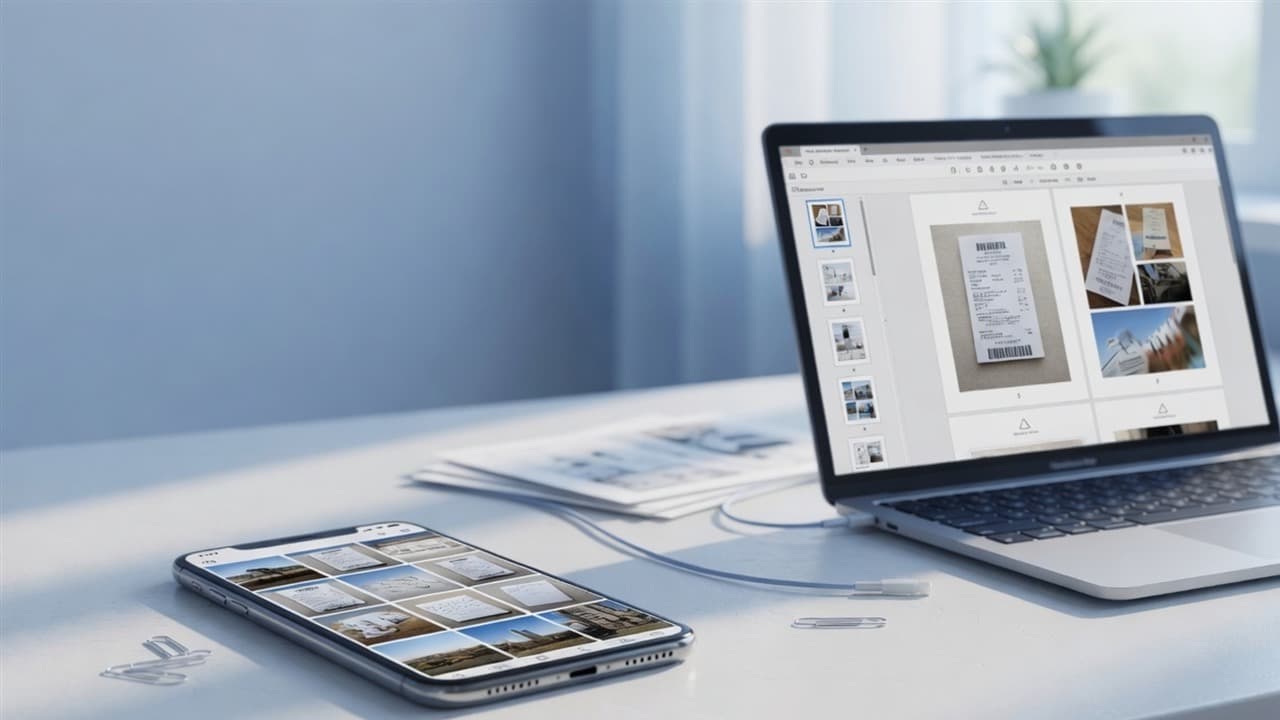
Somewhere in every adult's week comes the request: *send it as a PDF.* The insurance claim, the signed contract, the degree certificate for the portal that "does not accept images". If you own a scanner, it is a two-minute job. If you do not — and most people under thirty do not — the phone in your pocket is a better scanner than the office machines of a decade ago, provided you handle the capture and the cleanup correctly.
This is the full workflow: shoot pages that look scanned, convert them into one ordered PDF, compress it under whatever limit the portal sets, and fix the rotation and size problems that make phone scans look amateur.
Pro Tip
Already have the photos? Jump straight to Image to PDF to bundle them in order, then Compress PDF to hit the upload limit.
---
Quick Answer: Photos to One PDF in 4 Steps (AEO / Snippet)
- Photograph each page flat, in even light, straight-on — see the capture rules below.
- Convert to PDF: upload the photos to Image to PDF and arrange them in page order.
- Compress: run the PDF through Compress PDF to land under the portal's size cap.
- Verify and send: check page order and legibility, then upload or email the single file.
---
Capture: Where Phone Scans Are Won or Lost
The conversion tools cannot fix a bad photo. Four capture rules do ninety percent of the work:
Flat and parallel. Lay the page on a contrasting surface and shoot straight down — not at an angle. Keystoned, tilted pages look like photos, not scans, and text along the edges blurs.
Even light, no flash. Daylight from a window beats every room light. Avoid the flash: it blows out the paper and creates a hard shadow line at the page edge. If a shadow falls across the page from your own body, shift the setup until the light is uniform.
Fill the frame. Get close enough that the page fills the shot — but leave a visible margin around all four edges so the page boundary is unambiguous for cropping.
Sharpness check before moving on. Zoom into the photo and confirm the text is crisp. The most common phone-scan failure is motion blur from a rushed tap. Tap to focus, hold still, shoot.
One page per photo, every page, in order. It is easier to shoot all pages correctly once than to re-shoot page four after discovering it is missing.
---
Convert: Photos to One Ordered PDF
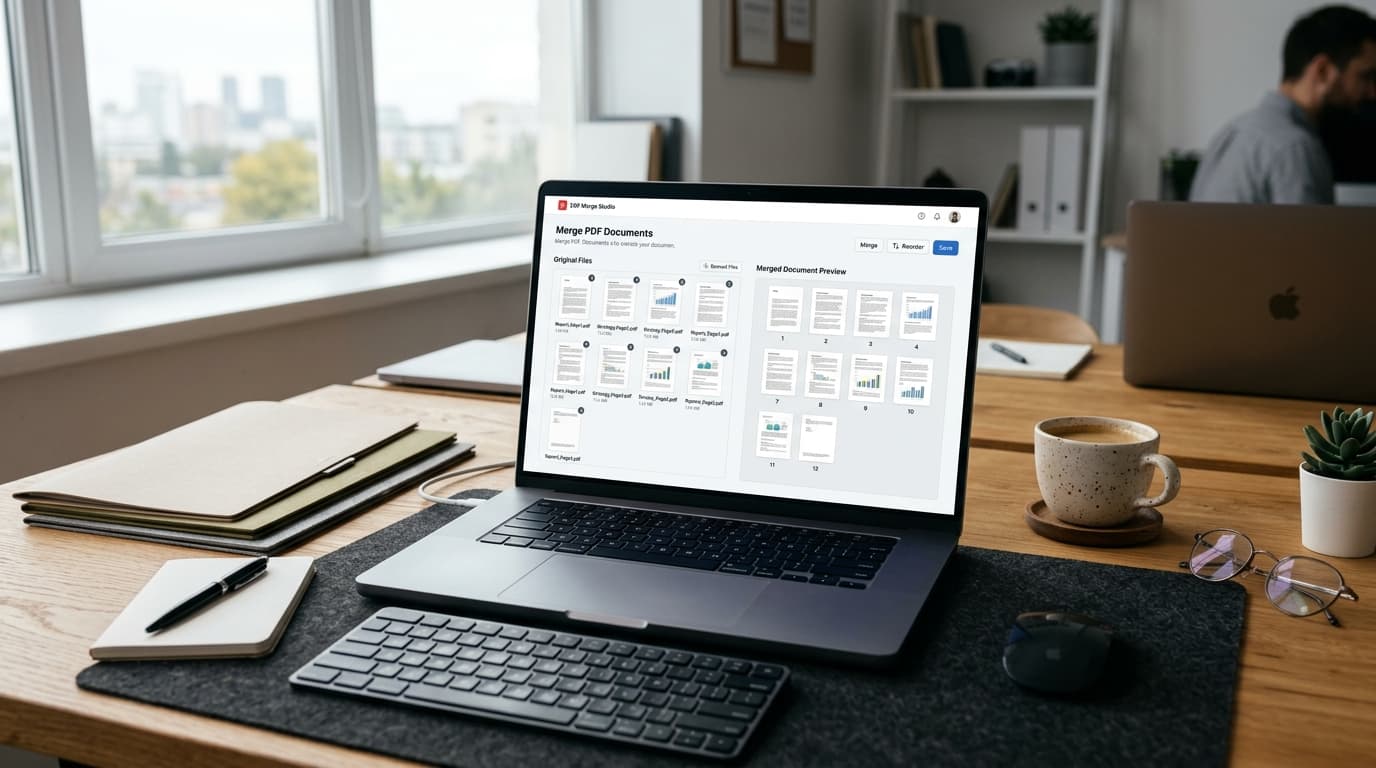
Open Image to PDF on the phone and add every page photo. Drag them into document order — the tool supports up to 30 images per run, which covers most multi-page documents. Choose "fit to page" if you want each photo to become a standard A4/Letter page, or "fit image" to preserve the exact photo shape. Then convert and download the PDF.
This step is also the answer to a surprisingly common question: portals that reject JPG uploads but accept PDF will accept a *photograph* once it is inside a PDF wrapper. The pixels are the same; the file type is what the portal checks.
---
Compress: Because Phone Photos Are Huge
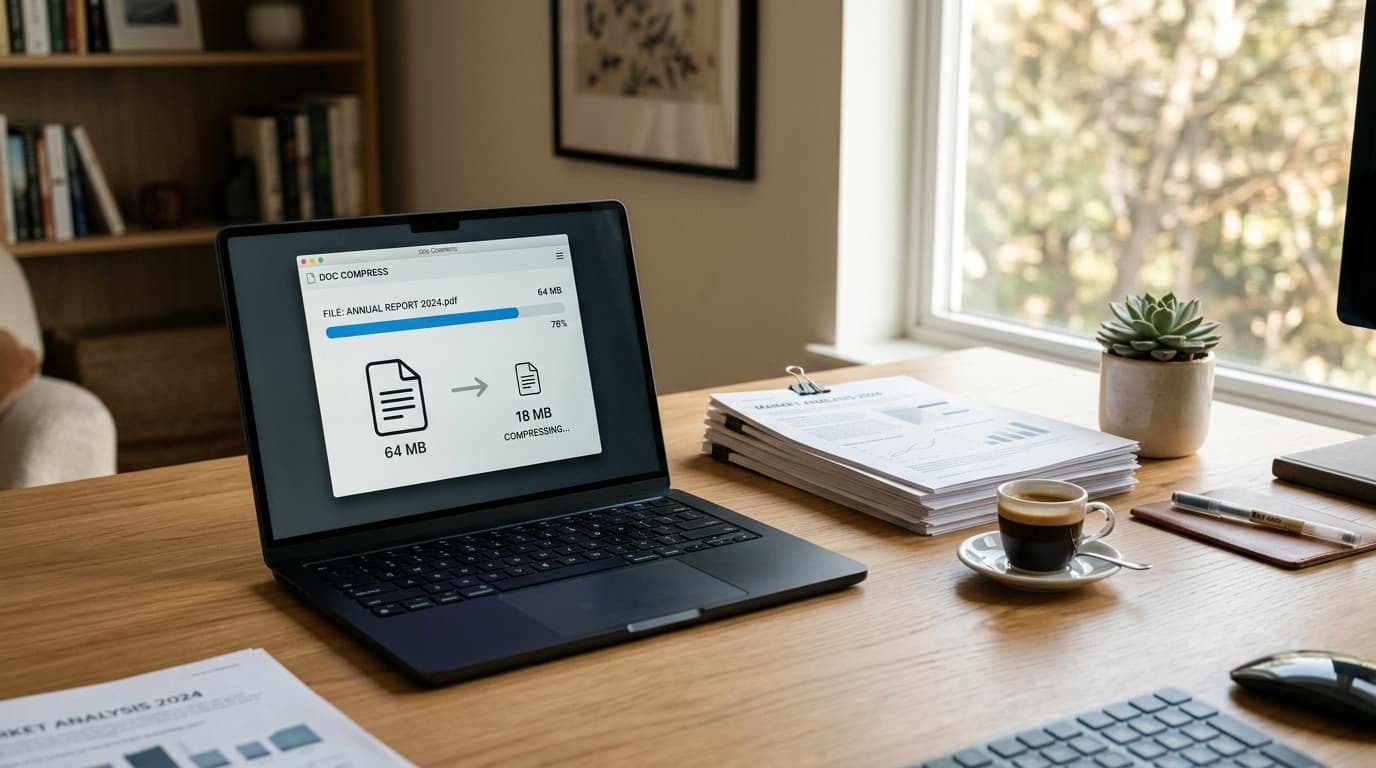
A modern phone shoots 12–50 megapixel photos. Photographed pages converted directly produce PDFs of 8–40MB — and the portal wants anything under 2MB, or the email system caps at 25MB, or the exam form says 500KB. This is the step that makes phone scans actually usable:
- Open Compress PDF and upload the merged file.
- Start with the recommended level; preview the result. Photographed text stays readable down to surprisingly small sizes because the JPEG compression is page-aware.
- For strict numeric caps, use the size-targeted presets — Compress PDF to 100KB, 200KB, 500KB — or Split PDF by Size if the document must stay intact across several attachments.
A five-page document photographed with care compresses from 20MB to under 500KB while remaining perfectly legible — the difference between an upload that fails and one that clears on the first try.
---
Fix-ups: The Small Repairs That Make It Look Scanned
- A page shot sideways — Rotate PDF turns pages 90° or 180° without touching the rest.
- Extra margins and table edges — Crop PDF trims them uniformly across every page.
- Pages in the wrong order — Reorder PDF Pages drags them into place; no re-merging needed.
- One extra page to remove — Delete PDF Pages takes it out cleanly.
- Text too blurry to select or search — the pages are images, so use OCR PDF to recognize the text and make the document searchable.
That last one matters more than it seems: a photographed contract is invisible to Ctrl+F until OCR gives it a text layer. Ten seconds of OCR turns a photo-of-paper into a document you can search, quote, and copy from.
---
Phone Scan vs Real Scanner: When to Upgrade
For text documents, forms, and certificates, a careful phone scan is genuinely indistinguishable from a flatbed scan once compressed — portals cannot tell, and neither can humans. Reach for a real scanner in three cases: photos that must be reproduced at very high fidelity (artwork, archival photos), documents with embossed or raised elements, and anything requiring certified scanning. Everything else — the daily paperwork of applications, claims, and HR onboarding — is phone territory.
Bottom Line
The workflow is four tools, five minutes, zero cost: shoot flat and straight, bundle with Image to PDF, compress with Compress PDF, fix pages with Rotate and Reorder as needed. Your phone was always a scanner; now the output is portal-ready too.
Topics
Yuvi Parmar
Founder & Lead EngineerYuvi Parmar is the founder and lead systems architect of PdfPixels. Specializing in high-performance browser computing, WebAssembly document tooling, and media compression pipelines, all guides and technical tutorials undergo rigorous empirical testing across Windows, macOS, iOS, and Android to ensure absolute workflow accuracy.
FAQFrequently Asked Questions
How do I scan a document with my phone without an app?
Photograph each page flat and straight-on in even light, upload the photos to PdfPixels Image to PDF, arrange them in page order, and download the single PDF. The whole workflow runs in the mobile browser.
How do I make a PDF from photos for free?
Use a free browser tool like Image to PDF: add up to 30 photos, order them, choose page fitting, and convert. Then compress the result with Compress PDF if an upload portal sets a size limit.
Why is my phone-scanned PDF so large?
Phone cameras shoot 12–50 megapixel photos, and each page photo becomes a large embedded image. Running the PDF through Compress PDF typically cuts the size by 90% or more while keeping text readable.
Can I make text in a photo-scanned PDF searchable?
Yes — photographed pages are images with no text layer. Run the PDF through the OCR PDF tool, which recognizes the text and returns it as selectable, searchable content.
How do I scan a multi-page document in the right order?
Photograph every page in sequence before converting, then confirm the order in Image to PDF before downloading. If the order is wrong afterward, Reorder PDF Pages fixes it without re-shooting.