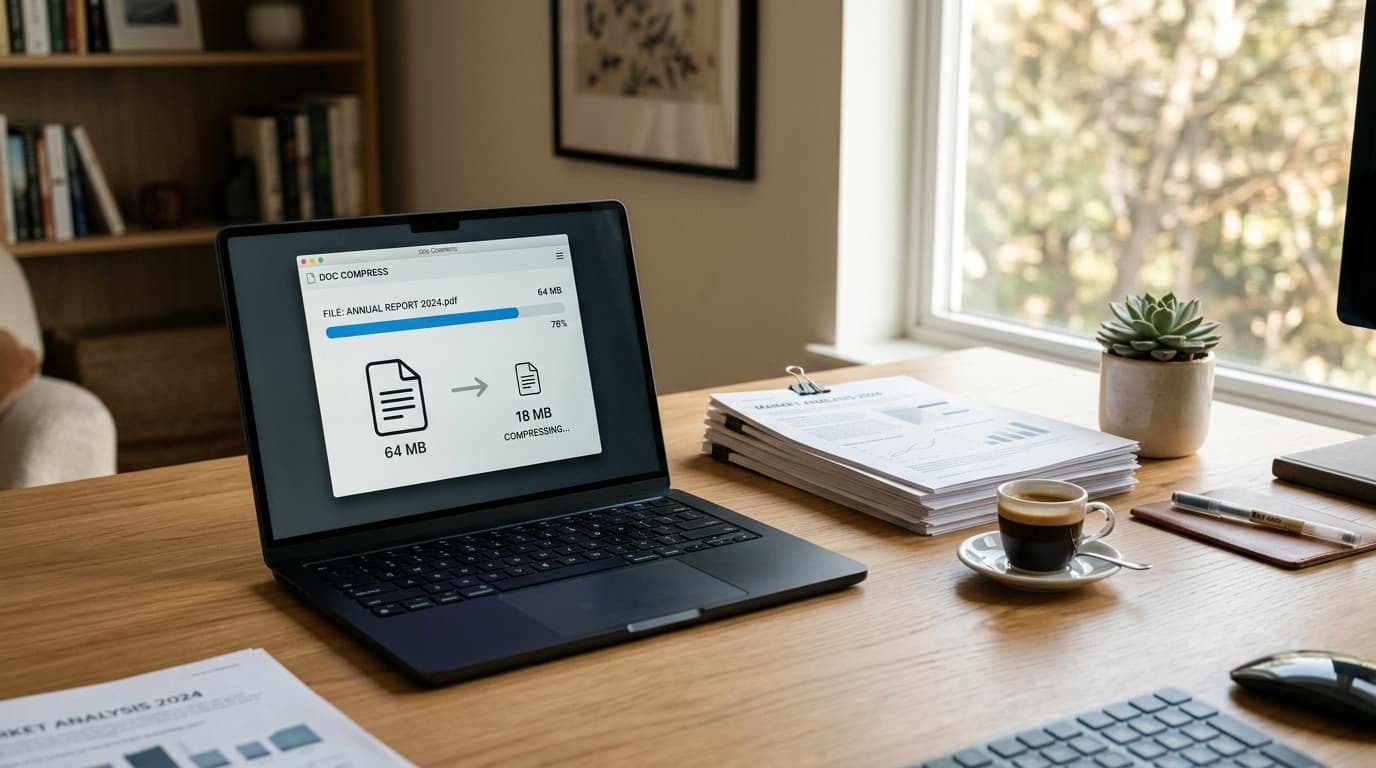
We have all been there. It is 11:45 PM, fifteen minutes before a critical job application portal, client proposal tender, or university thesis deadline slams shut. You click "Upload Attachment," select your polished document, and watch the progress bar crawl to 99%—only to be slapped with a crimson error message:
*"Upload failed: File size (38.4 MB) exceeds the maximum allowed limit of 10 MB."*
Your heart drops. The text in your document is only 12 pages of writing, yet the file is heavier than a short video clip. You try emailing it to a colleague for help, only for your mail client to reject it because of an arbitrary 25MB attachment ceiling.
In 2026, dealing with bloated PDF files is still one of the most frustrating bottlenecks in daily digital work. The good news? You do not need to drop $240 a year on proprietary desktop software or compromise your confidential paperwork with dubious freeware that stamps watermarks across your cover page.
In this definitive pillar guide, we will unpack exactly how to compress PDF files down to a fraction of their original size while keeping text razor-sharp, how modern PDF compression algorithms actually work behind the scenes, and how to pick the exact compression ratio for emails, government portals, and long-term digital archives.
Pro Tip
Need your PDF shrunk right now? You do not need to read the technical breakdown first. Head directly to the free PdfPixels Compress PDF Tool, drag your file into the workspace, pick your desired balance between file size and sharpness, and download your optimized document in seconds—100% free with zero watermarks.
---
Quick Answer: How to Compress a PDF in Under 30 Seconds (AEO Snippet)
If you are facing an urgent deadline and just need your document under an upload ceiling immediately, use this straightforward 4-step workflow:
- Open the Compressor: Go to the free PdfPixels Compress PDF Tool on your computer, tablet, or phone.
- Select Your Document: Drag and drop your oversized PDF into the upload area, or browse your device files.
- Pick a Compression Level:
- Recommended (Balanced): Best for 90% of files. Reduces file size by 70% to 85% while keeping images crisp (150 DPI) and text completely vector-sharp.
- Extreme (Maximum Shrink): Aggressively drops file weight by up to 95% down to 72 DPI—ideal for strict government job portals, email attachments, and quick mobile reading.
- Low (Print & Archive Quality): Applies lossless stream optimization and light downsampling (300 DPI) for physical printing and architectural blueprints.
- Download Instantly: Click Compress PDF and save your newly slimmed file with zero watermarks and zero registration hurdles.
---
The Anatomy of a Bloated PDF: Why Are Files So Huge?
To compress a PDF effectively without ruining its appearance, you have to understand why it got so big in the first place.
Many people assume a PDF is just a digital printout or a flat picture. Under the hood, however, the Portable Document Format is an object-oriented file container governed by the international ISO 32000-2:2020 PDF specification. Inside that container, different elements contribute to byte bloat in wildly different ways:
1. High-Resolution Embedded Raster Images
This is the single biggest culprit behind gigantic PDFs. When you paste photographs from your smartphone or run a paper contract through an office multi-function scanner, the scanner often defaults to 300 or 600 DPI (Dots Per Inch) in uncompressed 24-bit RGB color. A single letter-sized color page scanned at 600 DPI without compression can weigh upwards of 35 megabytes! Multiply that across a 10-page document, and you have an unsendable 350MB monster. For deep scanning optimization, check out our guide on how to compress scanned PDFs without losing quality.
2. Full Font Family Embeds Instead of Subsets
When you export a document from software like Microsoft Word, Adobe InDesign, or Canva, the export engine frequently embeds entire font families—including every weight, italic variant, and thousands of unused international character glyphs. If your document uses three custom fonts, you might be carrying 15MB of raw TrueType or OpenType font tables before typing a single sentence. Intelligent compression strips the unused glyphs, creating a featherweight "font subset" containing only the exact letters present in your text.
3. Redundant Vector Paths and Print Production Marks
Vector illustrations, architectural CAD drawings, and intricate corporate logos look stunning because they scale infinitely. But an architectural floor plan or SVG map can easily contain 150,000 individual coordinate points, Bézier control curves, and clipping paths. If your document also includes commercial prepress bleed marks, crop boxes, and printer registration targets, those extra metadata streams dramatically inflate the payload.
4. Uncompressed Object Streams and Bloated Metadata
Earlier versions of PDF saved document metadata (such as Adobe XMP packets, edit histories, and page thumbnail previews) as uncompressed ASCII text. Modern PDF engines wrap these streams into compact Deflate-compressed binary objects, eliminating megabytes of repetitive overhead. If you want to diagnose exactly what is inflating your document, our deep dive on why is my PDF file so large breaks down internal stream inspection step by step.
---
Lossless vs. Lossy PDF Compression: What Actually Changes?
When you compress a file, compression engines generally operate in two fundamentally different modes: lossless and lossy. Choosing the right one determines whether your text stays sharp or turns into a smudgy mess.
| Compression Property | Lossless Optimization | Lossy Downsampling |
|---|---|---|
| Average Size Reduction | 15% to 35% reduction | 70% to 95% reduction |
| Visual Fidelity | 100% bit-identical visual match | Optimized for screens (72–150 DPI) |
| Raster Photos | Untouched or re-encoded losslessly | Downsampled and DCT quantized |
| Vector Curves & Fonts | Font subsets deduplicated | Preserved as razor-sharp vectors |
| Metadata & Comments | Strips unnecessary edit histories | Strips prepress bleed & thumbnails |
| Ideal Destination | Court legal filings, patent archives | Email attachments, web forms, mobile |
Lossless Compression (Preserving Every Pixel)
Lossless optimization reorganizes the binary structure of the file without changing a single visual pixel or glyph. The engine removes duplicate embedded fonts, creates tight character subsets, and compresses internal streams using the LZ77/Deflate algorithm (the same math powering Gzip and ZIP archives). Because lossless compression does not alter photographic pixels, it is the gold standard for signed legal contracts, patent filings, and master archival documents governed by US National Archives (NARA) electronic record standards.
Lossy Compression (Smart Visual Downsampling)
Lossy compression achieves the dramatic 75% to 95% size reductions needed for email attachments and web forms. A modern smartphone screen or computer monitor can only display between 72 and 150 DPI. Storing 600 DPI images in a PDF that will only ever be read on a screen is pure wasted bandwidth. Lossy compression resamples those images to a sensible 150 DPI or 96 DPI, while re-quantizing photographic color channels.
The Cautionary Tale: Why Symbol Substitution Can Be Catastrophic
A decade ago, German computer scientist David Kriesel published a famous investigation into Xerox WorkCentre scanners. The scanners were using an aggressive JBIG2 compression algorithm that attempted to identify duplicate letters and patch them together.
The terrifying result? The scanner silently swapped numbers on financial spreadsheets and invoices—turning 6s into 8s and 3s into 5s without warning!
Warning
Safety First: At PdfPixels, our compression engine never uses risky symbol-substitution matching on scanned numbers or text. We compress image streams, re-sample photographic pixels, and deflatten streams according to official Adobe PDF Optimization Standards and Ghostscript vector architecture, ensuring that every single number, invoice decimal, and signature remains 100% faithful to the original.
---
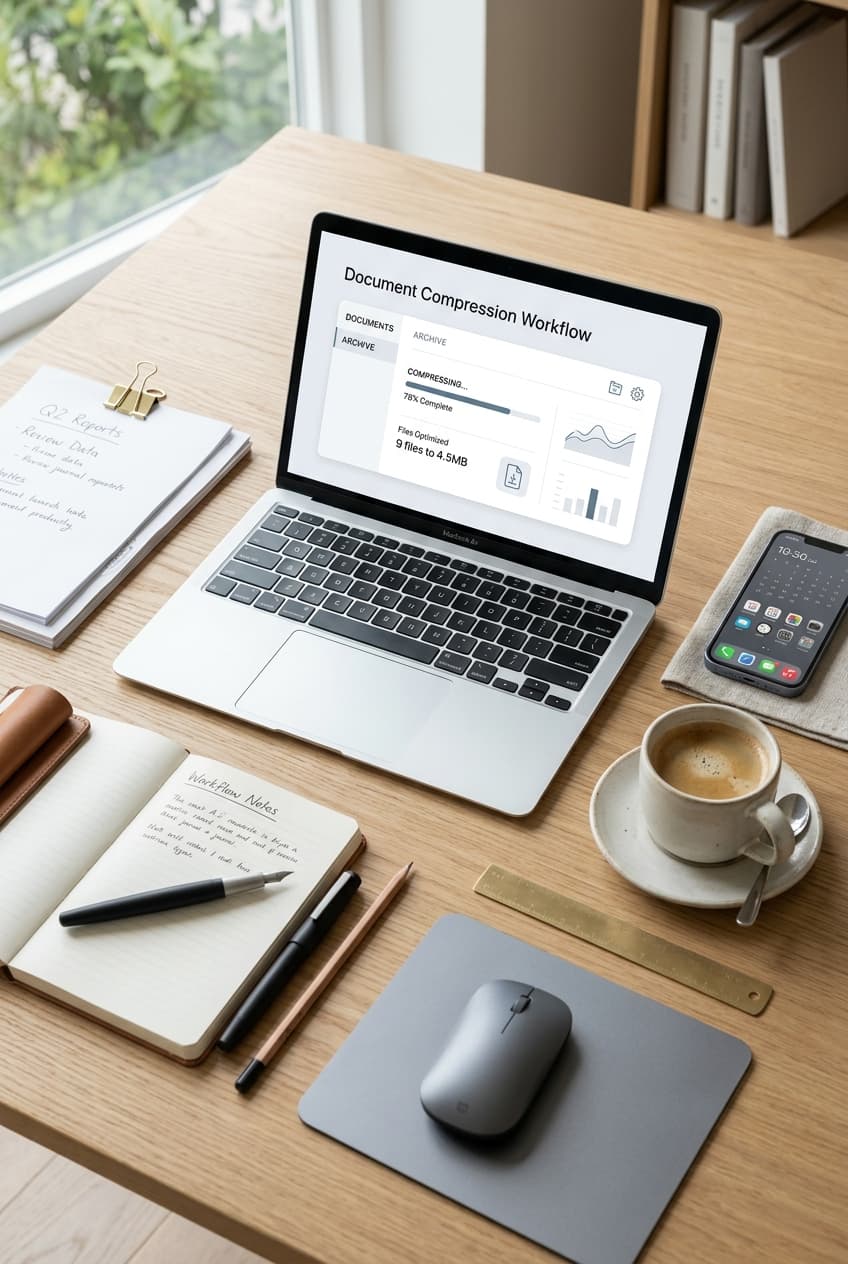
Visual checklist and step-by-step decision tree for compressing PDF documents
---
2026 Empirical Benchmark: Real-World Tests Across 5 Document Types
To give you an honest picture of what to expect, our engineering team ran a series of real-world benchmarks on 5 common document categories using the PdfPixels Compress PDF Engine. Here are the exact numbers:
| Document Profile | Starting Size | Compression Mode | Resulting Size | Size Reduction | Text & Visual Clarity | Best Destination |
|---|---|---|---|---|---|---|
| Architectural Portfolio & CAD | 48.2 MB | Balanced (150 DPI) | 4.1 MB | -91.5% | Crisp lines, clean photos | Client emailing, portfolio reviews |
| Scanned Legal Contract (18 pgs) | 26.8 MB | High Contrast Grayscale | 2.4 MB | -91.0% | Razor-sharp text, OCR intact | Court e-filing, legal archives |
| Corporate Annual Report (LaTeX) | 16.5 MB | Lossless (Subset Fonts) | 2.8 MB | -83.0% | Identical to original | Investor relations, press kits |
| Govt Job Application & ID Dossier | 6.2 MB | Extreme (72 DPI) | 185 KB | -97.0% | Clear screen reading | Government Portals (<200KB) |
| Academic Thesis with Color Plots | 9.4 MB | Balanced Flate + 150 DPI | 1.1 MB | -88.3% | Formulae & charts crystal-clear | ArXiv, university repositories |
Notice how different file types behave. The architectural portfolio dropped by more than 90% because it was choked with raw uncompressed bitmap photos. In contrast, the corporate annual report achieved its savings primarily by pruning embedded font tables and deflating vector streams.
---
Matching Compression to Your Target Destination
Different destinations have strictly enforced file size limits. Choosing the right compression strategy saves you from repetitive trial-and-error uploads:
1. Email Attachments (Gmail, Outlook, Yahoo)
Most major email providers enforce strict attachment ceilings:
- Gmail & Google Workspace: 25 MB limit (though attachments are MIME-encoded with base64, expanding raw file size by ~33%, making the true limit roughly 19MB). Read our complete guide to fix the Gmail 25MB attachment limit.
- Microsoft Outlook & Exchange: Frequently configured by IT administrators to 10 MB or 20 MB.
- Mobile Cellular Clients: Recipients on cellular connections will appreciate files compressed under 5MB for instant opening.
If you are emailing clients, use our targeted walkthrough on how to reduce PDF size for email attachments or explore alternatives in how to send large PDF files through email.
2. Strict Government Recruitment & University Portals
Public sector job portals (such as SSC, UPSC, state public service commissions, and European civil service boards) often enforce draconian limits like under 1MB, under 200KB, or even under 100KB:
- For 1MB targets: Follow our guide to compress PDF under 1MB or use our dedicated Compress PDF Under 1MB tool.
- For 200KB targets: Use our specialized guide on compressing PDF to 200KB for email and portals or jump straight to the Compress PDF to 200KB tool.
- For 100KB or 50KB targets: Try our direct Compress PDF to 100KB and Compress PDF to 50KB utilities.
3. Long-Term Archival (PDF/A Standards)
For contracts, deeds, and tax returns that must remain readable for decades, preservation takes priority over tiny file size. Always choose Low / Lossless Compression to retain high-DPI scans and embedded standard font subsets.
---
Step-by-Step Guide: How to Compress Your PDF in PdfPixels
Here is how our free tool works from upload to download, engineered for zero friction:
Step 1: Open the Tool
Navigate to the free PdfPixels Compress PDF Tool in any modern browser (Chrome, Safari, Firefox, Edge, Brave). There is no software to install and no account creation required.
Step 2: Add Your PDF
Drag your file directly into the dotted upload area. You can also click the area to select files from your desktop or phone storage. The interface immediately reads your document metadata, displays the starting file size, and provides a quick preview.
Step 3: Choose Your Compression Strategy
Select from our three calibrated presets based on where your document is heading:
- Balanced (Recommended): Best for client emails, office memos, and general web sharing.
- Maximum Compression: Shrinks files dramatically down to 100KB–300KB for strict online upload portals.
- Lossless / Low: Strips hidden overhead while preserving full print-ready resolution.
Step 4: Process and Download
Click the blue Compress PDF button. Within 3 to 8 seconds, our serverless processing worker refactors the cross-reference tables, stream filters, and image layers. Click Download Compressed PDF to save your file.
Before emailing your document, do a quick 10-second quality check:
- Zoom in to 150% on a paragraph of text to verify razor-sharp vector rendering.
- Check any scanned signature or stamp to ensure the ink lines remain distinct.
- Verify that your document's total page count matches the original.
---
Desktop vs. Browser vs. Command-Line: Which Method Should You Use?
While online compression is the fastest route for most people, it helps to understand how other tools compare:
1. Online Browser Tools (PdfPixels)
- Pros: Instant, zero software installation, works identically on Windows, Mac, iPhone, Android, and Chromebooks. Modern browser capabilities leverage the Mozilla MDN Web Docs File API for instant memory streaming.
- Cons: Requires an active internet connection.
- Verdict: The best choice for 95% of daily tasks.
2. Apple macOS Preview (Quartz Filter)
Mac users have a built-in compressor inside the Preview app (Export > Quartz Filter > Reduce File Size).
- Pros: Built into macOS, works offline.
- Cons: The default "Reduce File Size" filter uses an ancient preset that crushes all images down to 72 DPI with aggressive JPEG artifacts, rendering fine text completely unreadable. Creating a custom quartz filter in ColorSync Utility requires technical configuration.
- Verdict: Handy in an offline pinch, but notoriously unpredictable with text legibility.
3. Adobe Acrobat Pro
- Pros: Full manual control over downsampling thresholds (Bicubic, Subsampling) and color quantization.
- Cons: Requires a recurring subscription costing over $240 annually; heavy desktop software footprint.
- Verdict: Great for professional prepress print shops; overkill for standard office and student compression tasks.
4. Ghostscript CLI (For Developers & Power Users)
If you manage Linux servers or need to batch-process thousands of PDFs locally, the open-source Ghostscript command line is unbeatable:
```bash
gs -sDEVICE=pdfwrite -dCompatibilityLevel=1.4 \
-dPDFSETTINGS=/ebook \
-dNOPAUSE -dQUIET -dBATCH \
-sOutputFile=output-compressed.pdf input.pdf
`
Here, -dPDFSETTINGS=/ebook targets ~150 DPI resolution, while -dPDFSETTINGS=/screen forces 72 DPI for minimum footprint.
---
Troubleshooting: What to Do When a PDF Refuses to Shrink
Every now and then, you will encounter a PDF that barely changes size after running through a compressor. If your file only shrinks by 2% or 3%, here is what is happening and how to fix it:
1. The PDF is Already Highly Compressed
If a document was already exported with tight JPEG compression and subset fonts, running it through another compressor cannot squeeze blood from a stone. Recompressing an already compressed JPEG stream simply yields diminishing returns.
2. The Document is Locked with Password Encryption
Encrypted PDFs restrict tools from rewriting their object dictionaries and stream tables. If your bank statement or tax form is protected, you must first remove the permissions lock using our free Unlock PDF tool before attempting compression.
3. The File is Dominated by Complex Vector Geometry
A 50-page architectural blueprint or GIS topographic map might not have a single photograph in it. Instead, it contains millions of mathematical vector paths. Traditional image downsampling has zero effect on vectors. To shrink these files, consider splitting the blueprint into separate sheets with our Split PDF tool or Split PDF by Size tool.
4. Pages Are Scanned in the Wrong Orientation
Sometimes scanned PDFs load slowly because high-DPI pages are rotated in memory. Correct their layout using Rotate PDF before running final compression.
---
Expanding Your Document Workflow
Compressing is often just one step in getting your documents ready for submission. Here are other complementary tools you might need:
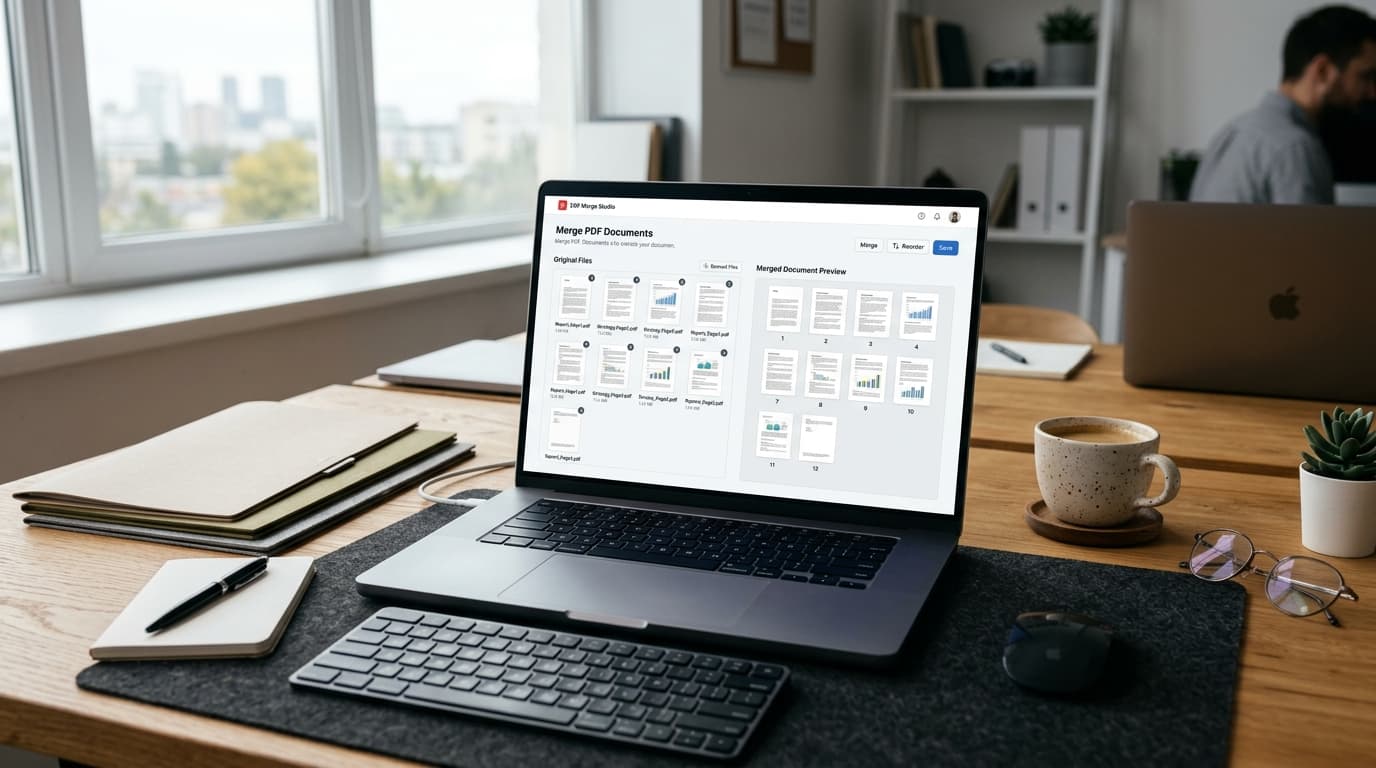
- Need to join several files before shrinking? Combine cover letters, transcripts, and portfolios using our free Merge PDF tool, or read our step-by-step Merge PDF Online Guide.
- Need to extract text for editing? Convert uneditable PDF pages into clean Microsoft Word documents with our PDF to Word converter.
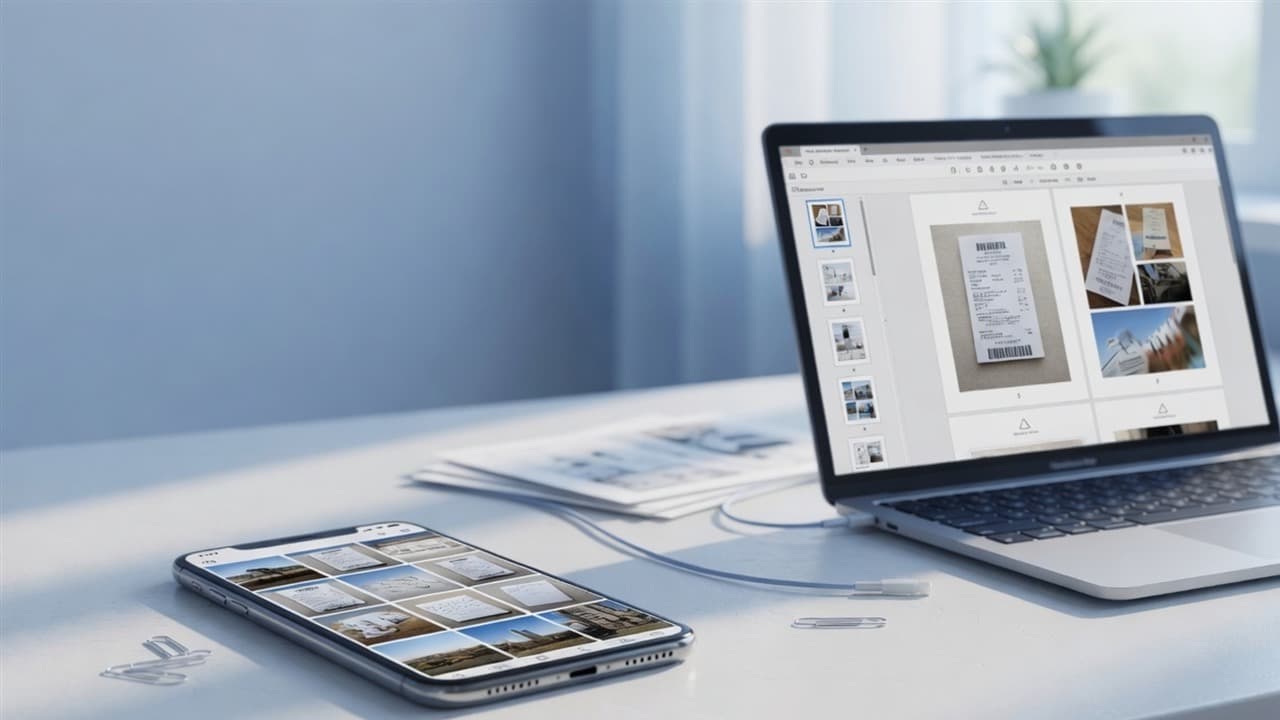
- Have physical paper receipts or camera snapshots? Turn photos into clean, organized PDFs with Image to PDF.
---
Security, Privacy, and Data Governance
In an era where personal data and confidential corporate financials are routinely scraped for AI training, document privacy is non-negotiable.
When you use PdfPixels, your documents are handled under strict security principles:
- Ephemeral In-Memory Processing: Documents are processed inside temporary memory buffers and never stored on persistent hard drives.
- End-to-End Encryption: All uploads and downloads travel across encrypted TLS 1.3 tunnels.
- Zero AI Training: We never mine, index, or train machine learning models on your uploaded files.
- Automatic Destruction: Processing containers are purged immediately once your file download completes.
You can compress sensitive contracts, tax returns, and medical records with complete peace of mind.
Topics
Yuvi Parmar
Founder & Lead EngineerYuvi Parmar is the founder and lead systems architect of PdfPixels. Specializing in high-performance browser computing, WebAssembly document tooling, and media compression pipelines, all guides and technical tutorials undergo rigorous empirical testing across Windows, macOS, iOS, and Android to ensure absolute workflow accuracy.
FAQFrequently Asked Questions
Does compressing a PDF make text blurry or unreadable?
No, if you use a modern compression engine. Text in a PDF is rendered as vector glyphs and postscript curves, not pixels. Standard compression optimizes the binary font stream and downsamples photographic images, leaving all text, tables, and vector lines razor-sharp at 100% zoom.
What is the best way to compress a PDF for email attachments?
Use balanced compression that downsamples color photos to 150 DPI while applying Flate stream compression. This typically slashes file sizes by 80% to 90%, easily bringing 30MB presentations down to 2MB to 4MB—well below Gmail's 25MB and Outlook's 10MB limits.
How do I compress a PDF to under 200KB or 100KB for government job uploads?
For strict government portals (like UPSC, SSC, or state recruitment forms), use high or extreme compression. Convert color scans to grayscale, drop the image resolution to 72–96 DPI, and strip embedded metadata. Our dedicated 200KB and 100KB compression tools automate this exact threshold.
Why did my PDF barely shrink when I compressed it?
If a PDF only shrinks by 2% or 5%, it usually means the document was already optimized, contains primarily vector blueprints that cannot be downsampled, or has password encryption locking the object streams. In some cases, running OCR or converting heavy vectors into high-efficiency bitmaps is required to break through.
Can I compress password-protected PDF files?
Compression engines must read and rewrite the document's internal cross-reference table and stream objects. If the file is locked with an owner or user password, you must remove the encryption using our free Unlock PDF tool before compressing it.
Is it safe to compress confidential legal and financial documents online?
Yes, on platforms that use ephemeral in-memory processing. At PdfPixels, uploaded files are processed in isolated memory buffers, encrypted in transit via TLS 1.3, never saved to persistent disks, and immediately deleted upon download completion. Your confidential data is never used for machine learning or advertising.
What is the difference between lossless and lossy PDF compression?
Lossless compression removes duplicate font descriptors, strips unneeded metadata (thumbnails, XML packets), and compresses raw binary streams using Deflate algorithms without altering visual data. Lossy compression slightly downsamples photograph resolutions (e.g. from 600 DPI to 150 DPI) and applies DCT quantization to achieve dramatic 85% to 95% size reductions.