<h2>What Is HEIC and Why Does Apple Use It?</h2>
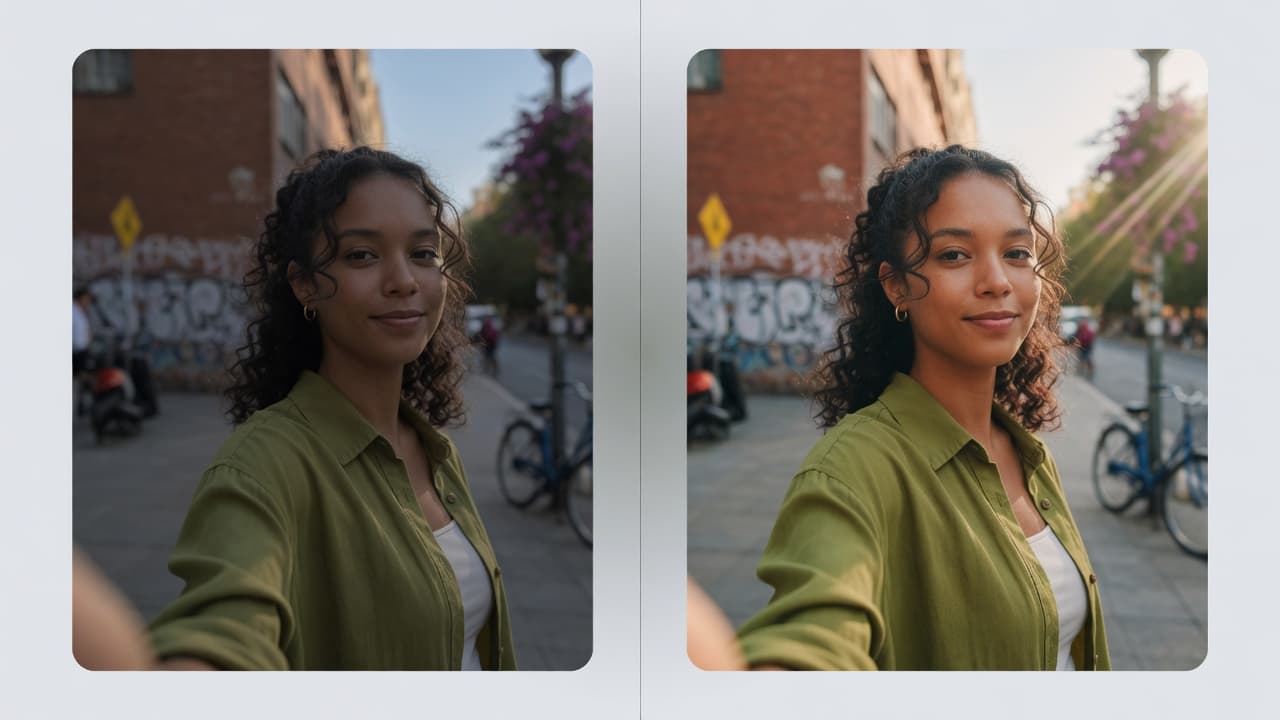
<p>HEIC (High Efficiency Image Container) is the file format Apple introduced with iOS 11 in 2017. It uses the HEIF (High Efficiency Image Format) codec, which compresses photos approximately twice as efficiently as the older JPEG format. A 4MB iPhone photo saved as HEIC is visually equivalent to an 8MB JPEG — Apple stores twice as many photos in the same storage space without any perceptible quality difference. For users with limited iPhone storage, HEIC is a genuine improvement. The problem arises the moment you try to share that photo with anyone outside the Apple ecosystem.</p>
<h2>Why HEIC Causes Problems</h2>
<p>Despite being technically superior, HEIC is not universally supported:</p>
<ul>
<li><strong>Windows</strong> — Windows 10 and 11 cannot open HEIC files without installing the Microsoft HEIF Image Extensions codec from the Microsoft Store. Most Windows users have never done this and see a generic error when they receive an HEIC photo.</li>
<li><strong>Android</strong> — Android does not natively support HEIC. Google Photos can display HEIC files synced from iCloud, but Android's built-in Gallery app and most third-party apps cannot open them.</li>
<li><strong>Websites and upload forms</strong> — Most web platforms reject HEIC uploads. Government portals, job application sites, social media platforms (apart from Apple-native apps), and email clients that display inline images all expect JPG or PNG.</li>
</ul>
<p>The result: HEIC photos taken on an iPhone frequently cause "file not supported" errors when shared outside Apple devices.</p>
<h2>How to Convert HEIC to JPG Free Using PdfPixels</h2>
<ol>
<li><strong>Open PdfPixels HEIC to JPG</strong> at <a href="/tools/heic-to-jpg">pdfpixels.com/tools/heic-to-jpg</a>. Works in any browser — no app or software download needed.</li>
<li><strong>Upload your HEIC file</strong> — drag and drop the .heic file onto the upload area, or click to browse your device. On iPhone, you can share directly from the Photos app to your browser.</li>
<li><strong>Convert</strong> — the tool automatically converts your HEIC photo to JPG format. The conversion runs in your browser without uploading to a cloud server.</li>
<li><strong>Download the JPG</strong> — click Download to save the converted JPG. The file is now compatible with Windows, Android, email clients, and virtually every website.</li>
</ol>
<h2>How to Stop Your iPhone from Saving Photos as HEIC</h2>
<p>If you frequently share photos with Windows or Android users, changing your iPhone's camera format prevents the problem entirely:</p>
<ol>
<li>Open <strong>Settings</strong> on your iPhone</li>
<li>Tap <strong>Camera</strong></li>
<li>Tap <strong>Formats</strong></li>
<li>Select <strong>Most Compatible</strong></li>
</ol>
<p>Your iPhone will now save photos as JPG instead of HEIC. This uses slightly more storage space per photo but eliminates all compatibility issues. Photos already stored as HEIC on your device are not affected — those need to be converted individually.</p>
<h2>How to Convert Multiple HEIC Photos at Once</h2>
<p>PdfPixels HEIC to JPG supports batch conversion — upload several HEIC files at once and download the converted JPGs together. For large batches (hundreds of photos from an iPhone backup), consider a desktop tool: iMazing HEIC Converter (Mac/Windows, free) or the Photos app on Mac, which exports HEIC photos as JPG via File → Export → Export Photos with "JPEG" format selected.</p>
<h2>HEIC vs. JPG Quality Comparison</h2>
<p>At equivalent visual quality, a HEIC file is roughly half the size of a JPG. When you convert HEIC to JPG at 85% quality, the resulting JPG file will be larger than the original HEIC but visually indistinguishable at normal viewing sizes. If file size is critical (for example, hitting a 200KB government portal limit), compress the converted JPG using <a href="/tools/compress-image">PdfPixels Compress Image</a> after conversion to hit your exact target size.</p>
Advertisement
Topics
Yuvi Parmar
Founder & Lead EngineerYuvi Parmar is the founder and lead systems architect of PdfPixels. Specializing in high-performance browser computing, WebAssembly document tooling, and media compression pipelines, all guides and technical tutorials undergo rigorous empirical testing across Windows, macOS, iOS, and Android to ensure absolute workflow accuracy.
FAQFrequently Asked Questions
Why can't I open HEIC photos on Windows?
Windows does not include native HEIC support. Microsoft offers the HEIF Image Extensions codec as a free download from the Microsoft Store, which adds HEIC support to the Photos app and Windows Explorer thumbnails. Alternatively, convert your HEIC files to JPG using PdfPixels HEIC to JPG — the resulting JPG opens on any device without any codec installation.
Does converting HEIC to JPG reduce quality?
Converting HEIC to JPG at high quality settings (85–95%) produces virtually identical visual results. HEIC uses more efficient compression than JPG, so the JPG file will be somewhat larger at equivalent quality — typically 20–40% larger. Avoid re-compressing a JPG that was already converted from HEIC, as each re-compression cycle adds additional artifacts.
How do I change my iPhone to save photos as JPG instead of HEIC?
Go to Settings → Camera → Formats and select 'Most Compatible'. This switches your iPhone camera to save photos as JPG instead of HEIC. Note: photos already saved as HEIC on your device remain in HEIC format — this setting only affects newly taken photos.