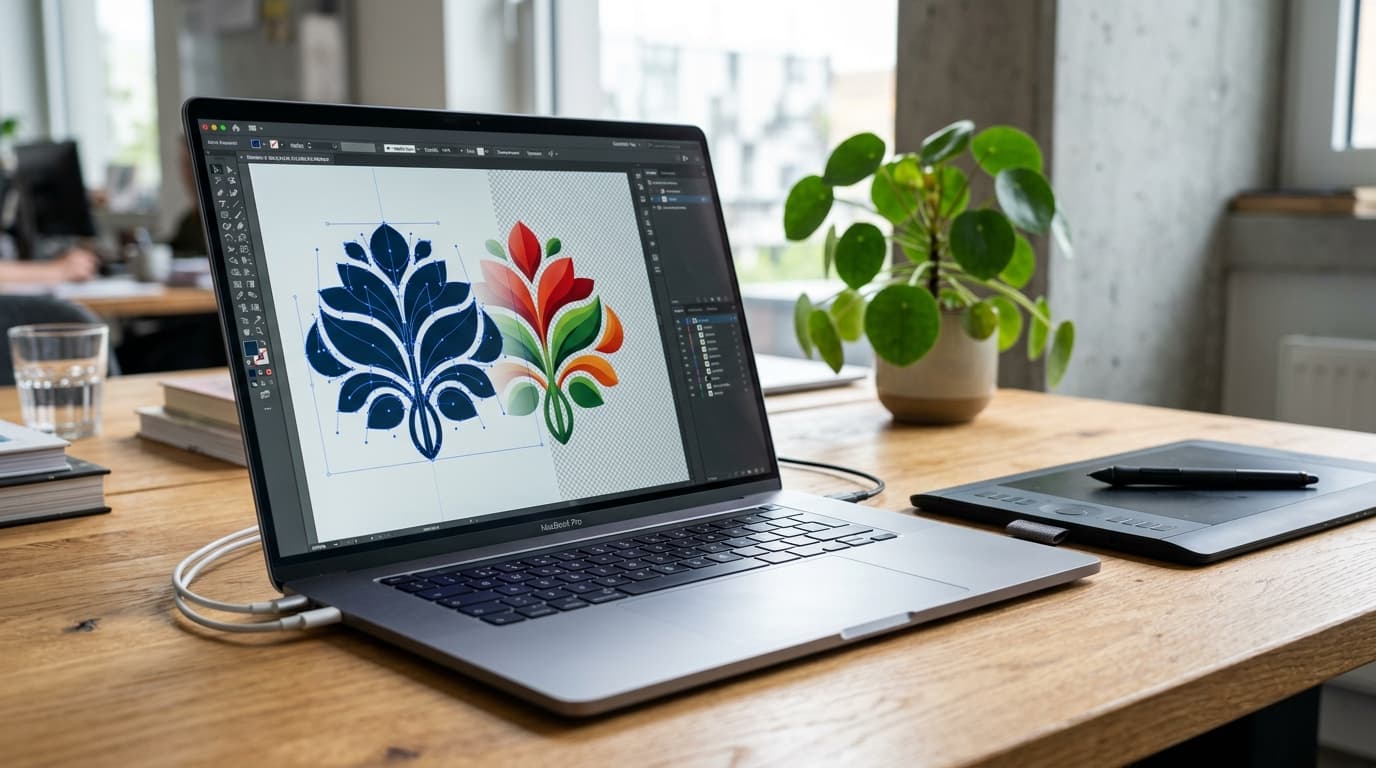
Last week, a product designer on our team handed off a brand-new icon suite to our marketing coordinator. Everything looked flawless on Figma: crisp vector curves, clean geometric lines, and buttery gradients. But thirty minutes before a company-wide town hall presentation, panic ensued. The marketing coordinator tried dragging the SVG logo directly into Microsoft PowerPoint and attaching it to an Outlook newsletter draft.
PowerPoint threw up an empty white box with a red “X”, and Outlook stripped the vector code completely, displaying broken markup.
We dropped the master logo into an online SVG to PNG converter, set the canvas output to 2400×2400 pixels with an intact alpha channel, and had high-resolution, transparent PNGs ready in under fifteen seconds. The presentation went off without a hitch.
If you have ever had an SVG file rejected by a social media scheduler, ignored by an email client, or mangled by a legacy document editor, you are not alone. Scalable Vector Graphics (.svg) are unbeatable for responsive web code, but when the real world demands universal compatibility, nothing beats a rock-solid Portable Network Graphics (.png) file.
In this guide, we break down how vector rasterization works under the hood, when converting SVG to PNG makes practical sense, how to avoid common pitfalls like pitch-black backgrounds and fuzzy upscaling, and how to get razor-sharp PNGs every single time.
Pro Tip
Working with images across multiple formats? Explore our suite of free browser utilities, including the PNG to JPEG Converter, Compress Image, Resize Image, and Remove Background tools. All files process directly in your browser without uploading your assets to external servers.
---
What Actually Happens When You Convert SVG to PNG?
To understand why converting SVG to PNG requires a bit of intention, you have to look at how each format stores visual information.
An SVG file is not a traditional flat picture. It is human-readable XML code. When you open an SVG file in a code editor, you see coordinates, paths, stroke widths, fills, and mathematical formulas:
```xml
<svg viewBox="0 0 100 100" xmlns="http://www.w3.org/2000/svg">
<circle cx="50" cy="50" r="40" stroke="#3b82f6" stroke-width="4" fill="#60a5fa" />
</svg>
`
Because this image is defined by math rather than pixels, your browser or graphics engine recalculates every Bézier curve on the fly whenever you zoom in, zoom out, or stretch your browser window. According to the W3C Scalable Vector Graphics (SVG) 2 Specification, vector graphics provide resolution independence across any display scale.
A PNG file, on the other hand, is a raster graphic. It consists of a fixed, two-dimensional grid of pixels (a bitmap). Each individual pixel is assigned an exact 32-bit RGBA color value (Red, Green, Blue, and Alpha for transparency).
When an SVG to PNG converter processes your vector file, it performs an operation called rasterization:
- XML Parsing & DOM Construction: The engine reads the XML structure, resolving vector shapes, nested groups (
<g>), clip paths, gradient coordinates, and inline CSS styles. - Path Geometry Calculation: The rasterizer plots every curve and anchor point onto a virtual coordinate matrix defined by your chosen target resolution.
- Anti-Aliasing & Subpixel Sampling: Because curves cannot naturally align with square grid pixels, the engine calculates subpixel color values along the edges. This creates smooth, non-jagged borders rather than stepped pixel stairs.
- Alpha Transparency Mapping: The converter calculates the background. If no background fill is explicitly declared in the vector code, it writes an alpha transparency value of
0to the surrounding pixels. - Deflate Compression: Finally, the raster engine encodes the pixel array into a standardized PNG container using lossless Deflate compression, locking in the image exactly as rendered.
For a deeper dive into how raster pipelines render on modern displays, the MDN Web Docs SVG Guide offers an exhaustive technical breakdown.
---
4 Big Reasons to Convert SVG to PNG
While vectors are the gold standard for web development, there are distinct, real-world scenarios where converting to PNG is mandatory:
1. Universal Software and Social Media Compatibility
Not all software understands XML-based vector graphics. Major social networks and workplace platforms simply do not accept SVG uploads:
- Social Media: Facebook, Instagram, LinkedIn, Discord, and Twitter/X reject SVG files as avatars or feed images because arbitrary vector code poses security risks.
- Office Suites: Older editions of Microsoft Word, PowerPoint, Apple Keynote, and Google Workspace frequently misrender complex SVG gradients or drop embedded vector fonts.
- Content Management Systems: Many WordPress hosts and Shopify stores restrict SVG uploads by default to prevent cross-site scripting vulnerabilities. A PNG file uploads everywhere with zero friction.
2. Elimination of Vector Security Risks (XSS Prevention)
Because SVG files are built on XML, they can contain executable JavaScript within <script> tags, foreign objects, or external entity references (XXE attacks). Malicious actors sometimes disguise cross-site scripting payloads inside seemingly harmless SVG icons. Converting untrusted user-submitted SVGs into flattened PNG images completely neutralizes any embedded scripts, turning active code into inert pixels.
3. Reduced CPU Overhead on Mobile Devices
Rendering an intricate SVG with thousands of paths, blur filters, or multi-layered masks requires significant CPU and GPU cycles on mobile devices. If an e-commerce catalog renders dozens of complex vector badges simultaneously, scrolling frame rates drop noticeably. Converting static illustrations to optimized PNGs moves the rendering work ahead of time, freeing up client hardware. If you are balancing file size versus loading speed, review Google's best practices on Google Web Fundamentals Image Optimization.
4. High-DPI Print Production
Commercial print shops, label printers, and merchandise manufacturers often demand raster files at an exact physical measurement and pixel density (such as 300 DPI). Exporting your vector asset as a high-resolution PNG ensures that every element, drop shadow, and stroke weight is locked in stone before reaching the print press. If you are preparing files for physical printing, check out our guide on Image DPI for Print vs. Web Explained or use the Convert DPI tool.
---
SVG vs. PNG: Direct Feature Comparison
Choosing between vector and raster depends on your output medium. The table below illustrates where each format shines:
| Metric / Feature | Scalable Vector Graphics (SVG) | Portable Network Graphics (PNG) |
|---|---|---|
| Data Format | Vector (XML coordinate paths & formulas) | Raster (2D pixel grid bitmap) |
| Scalability | Infinite without any quality loss | Fixed resolution; pixelates if scaled up |
| Alpha Transparency | Yes (vector clip paths & opacity) | Yes (full 8-bit alpha channel) |
| Ideal Use Cases | Logos, UI icons, charts, typography | Photos, screenshots, universal badges, avatars |
| Software Support | Web browsers, vector design tools (Figma, Illustrator) | Universal (any OS, browser, app, or printer) |
| Animation Support | Native (CSS, SMIL, JavaScript) | Requires APNG (not standard PNG) |
| Scripting / Security | Can execute JavaScript (potential XSS) | Pure static pixel data (completely inert) |
| Typical File Size | 2KB – 150KB for clean graphics; heavy for complex scenes | 50KB – 2MB depending on pixel dimensions |
For additional context on choosing between raster formats, read our complete analysis of WebP vs JPG vs PNG: Which Format Should You Choose? and Canva Design School's Raster vs Vector Primer.
---
Infographic guide explaining when to convert SVG vector files to transparent PNG images
---
Step-by-Step: How to Convert SVG to PNG Online
Converting your vector graphic to a high-fidelity PNG on PdfPixels takes just a few clicks:
Step 1: Prepare Your SVG File
Before converting, ensure your SVG is properly structured:
- Verify that your vector graphic has a defined
viewBoxattribute so the converter knows its proportional boundary. - If your SVG relies on custom local fonts, convert text layers to outlines (curves) in your design tool beforehand to prevent font fallback issues.
Step 2: Upload to the Converter
Drag and drop your .svg file into the converter upload area. The tool will parse the XML tree in memory.
Step 3: Choose Your Dimensions and Density
Because vector graphics are infinitely scalable, you can render your PNG at whatever dimension you need:
- Standard Web: If the icon will display at 48×48px, export at 96×96px or 144×144px (2x or 3x pixel density) for high-DPI smartphone screens.
- Social Media Avatars: Export at 1024×1024px or 2048×2048px for crystal-clear clarity on profile pages.
- Print Materials: Calculate your target inches multiplied by 300 DPI (for example, a 4×4 inch print sticker requires a 1200×1200 pixel PNG).
Step 4: Download Your Transparent PNG
Click convert, and your browser generates the raster PNG file with full alpha transparency preserved. Save the file directly to your desktop or mobile device.
Pro Tip
After downloading your PNG, if the file size is larger than desired for website loading, run it through our Compress Image tool or read our breakdown on PNG to JPG Converter: How & When to Switch Formats. If you need to bundle multiple graphic assets into a single document, use Image to PDF.
---
4 Common SVG to PNG Pitfalls (And How to Fix Them)
Converting between vector and raster formats occasionally throws unexpected curveballs. Here is how to troubleshoot the most common rendering glitches:
1. The Unexpected Black Background
The Problem: You convert an SVG that had a transparent canvas, but the resulting PNG appears with a pitch-black background when viewed in an image viewer or forwarded via email.
The Cause: Some default image viewers (and older image processing libraries) misinterpret the alpha channel's 0-value transparency and render missing RGB color information as pure black (#000000).
The Fix: Make sure your viewer is set to show a checkerboard transparency grid rather than a solid black canvas. If you need a solid background for platforms that do not handle alpha channels properly, flatten your graphic against a white backdrop using our PNG to JPEG tool.
2. Blurry or Soft Output Lines
The Problem: The exported PNG looks fuzzy around the edges, even though the original SVG was razor-sharp.
The Cause: This happens when an SVG with a tiny native viewBox (for example, 24×24 pixels) is rasterized at exact 1x dimensions and then stretched on a modern 4K screen or Retina MacBook display.
The Fix: Always rasterize small UI icons at 3x or 4x their intended display size (e.g., render a 24px icon as 96px or 120px). The downscaled raster will look pinpoint sharp on high-density displays. If you already have a low-res image, explore our Upscale Image tool to recover clarity.
3. Missing Custom Fonts
The Problem: Your SVG logo includes a custom brand typeface, but the exported PNG displays standard generic Arial or Times New Roman.
The Cause: If the SVG refers to an external font via <text font-family="..."> without embedding the actual font file or web font URL, the rasterizer falls back to the system's default serif or sans-serif font.
The Fix: Open your vector file in Figma, Adobe Illustrator, or Inkscape, select all text layers, and convert them to vector outlines (Curves/Paths). Once the letters are transformed into pure Bézier paths, no external font files are required.
4. Clipped Borders or Truncated Drop Shadows
The Problem: The top, bottom, or edges of your graphic are cut off abruptly in the converted PNG.
The Cause: Drop shadows, blur filters, and thick stroke widths expand outside the bounding box defined in the SVG's viewBox attribute.
The Fix: Adjust the viewBox in your vector source to include sufficient padding around the artwork, or re-export the SVG with "Include Bounding Box of Effects" enabled.
---
The Takeaway
Scalable Vector Graphics and Portable Network Graphics are complementary tools in any modern digital workflow. Keep your SVGs for responsive web elements, dynamic iconography, and scalable UI themes where resolution independence is essential. But whenever you need universal software acceptance, total safety from script vulnerabilities, flawless print output, or dependable social media assets, an SVG to PNG converter gives you the best of both worlds.
Topics
PdfPixels Editorial
PdfPixels teamPublished by the PdfPixels technical writing and engineering team. All guides and technical tutorials undergo rigorous testing across Windows, macOS, iOS, and Android environments to guarantee accuracy and workflow reliability.
FAQFrequently Asked Questions
Does converting SVG to PNG make the image blurry when zoomed in?
Yes, because PNG is a raster format made of fixed pixels. Unlike an SVG vector which recalculates curves at any scale, a PNG cannot gain resolution when zoomed past its export dimensions. To avoid blurriness, always rasterize your SVG at 2x, 3x, or 4x the intended display dimensions, or at 300 DPI for print.
How do I make sure my converted PNG has a transparent background?
Ensure your original SVG file does not have a solid rectangle or background color element defined inside the XML root. A standard SVG to PNG converter will preserve all transparent regions as an uncolored 8-bit alpha channel, giving you a clean cutout image.
Why do platforms like Facebook, Discord, and LinkedIn reject SVG files?
Social networks and forum platforms restrict SVG uploads primarily for security. Because SVG is based on XML, an SVG file can theoretically execute malicious JavaScript or load remote scripts via cross-site scripting (XSS). PNG files contain purely static raster pixel data and cannot execute code.
What resolution or DPI should I export my SVG to PNG for printing?
For physical printing (stickers, t-shirts, brochures, business cards), export your PNG at 300 DPI (dots per inch). To find your pixel dimensions, multiply your target print dimensions in inches by 300. For example, a 3×3 inch graphic requires a 900×900 pixel PNG.
Are custom web fonts preserved when converting SVG to PNG?
Only if the font glyphs have been converted to vector paths (outlines) or if the font is embedded directly into the SVG file. If your SVG relies on an external font installed only on your local machine, the converter will substitute a default system font. Always outline text in your vector editor before converting.
Can an SVG file contain harmful malware or scripts?
Yes. Because SVG is an XML dialect, it supports <script> tags and embedded objects that can trigger cross-site scripting (XSS) attacks in web browsers. Converting an untrusted SVG into a PNG strips all executable logic and flattens the graphic into safe, inert pixels.