Somewhere around 2020, saving an image from the internet stopped being boring. You right-click, save, and there it is: photo.webp — a file your favorite photo editor opens at half the quality, your grandma's laptop treats like a zip archive, and the government form you were filling out rejects outright. If you have ever stared at that extension wondering who decided this was a good idea, this guide is for you.
The short version: WebP is genuinely better *for websites* and quietly worse *for everyone around the website*. Converting to JPG takes one click. Which situations actually call for it, and where the quality traps hide — that is the rest of this guide.
Pro Tip
Have the file already? Drop it into the free WebP to JPG converter and download a clean JPG in seconds — no signup, no watermark, no quality surprises.
---
Quick Answer: Convert WebP to JPG (AEO / Snippet)
- Open the WebP to JPG converter on any device.
- Upload the .webp file (drag, drop, or pick from your gallery).
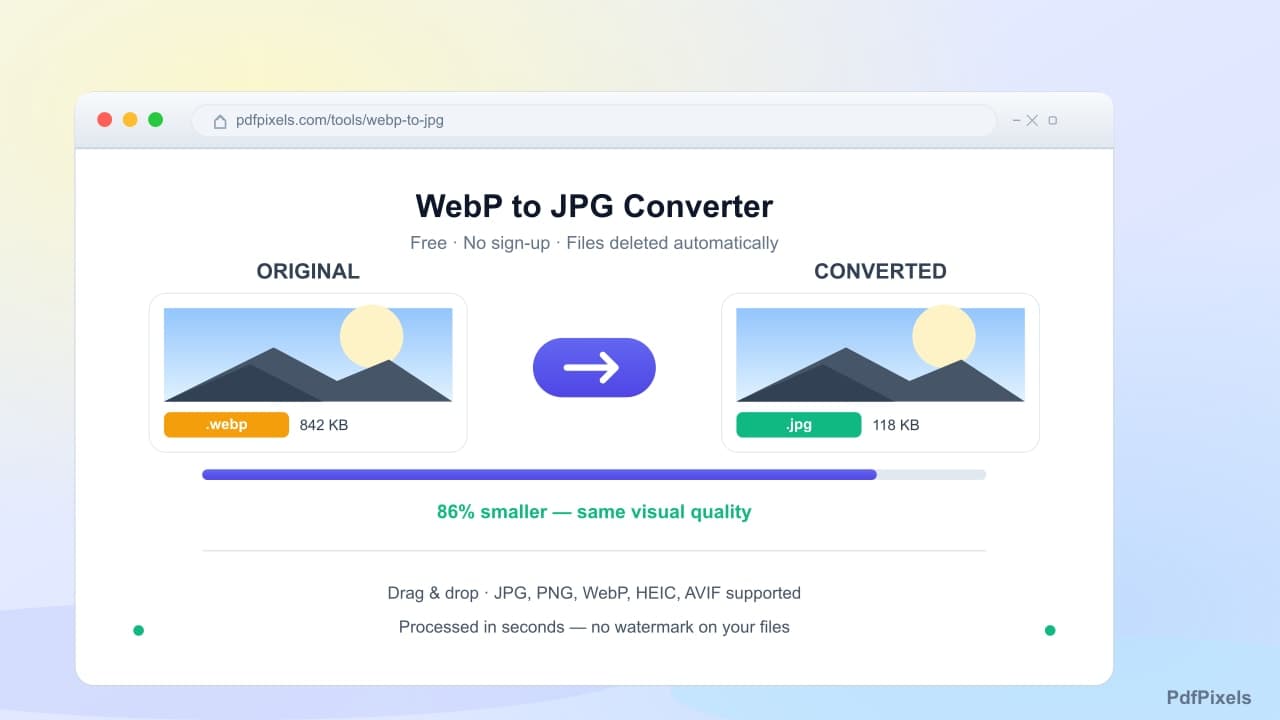
- Download the JPG — quality 90 keeps the image visually identical.
- Upload the JPG to the form, editor, or app that rejected the original.
There is nothing else to configure for most conversions. The only judgment call is quality, covered below.
---
Why Every Site Started Serving WebP
WebP is Google's image format, released in 2010 and quietly adopted by nearly every major website over the last decade. The reason sites love it is real: a WebP image is typically 25–35% smaller than the same image as JPG, at the same visual quality. On a page with twenty images, that is the difference between a site that loads in two seconds and one that takes three. Multiply that across billions of page views and you understand why Google built it, why Chrome pushes it, and why every CDN now serves it by default.
The catch is what happens *after* the download. WebP won on the web because browsers adopted it — but browsers are not the only place images go. The file you saved might end up in:
- A government or job portal whose uploader whitelists JPG and PNG, written in 2014 and never touched since.
- An older photo editor — plenty of Windows tools, office suites, and printer drivers still have no idea what WebP is.
- A WhatsApp-forwarded family chain where the file lands on a device nobody updates.
- Any workflow that resumes, prints, or archives — the places where "it works in Chrome" stops mattering.
So the internet produces WebP at scale, and every device that *isn't* a modern browser produces friction. That gap is why "webp to jpg converter" became a permanent top search.
---
When You Should Convert (and When You Shouldn't)
Convert to JPG when:
- An upload form rejects .webp. Still the number one reason, and it is not close.
- You are editing in older software. If your tool opens WebP but misbehaves — wrong colors, missing export options — convert first.
- The recipient's device is unknown. Emailing a photo to someone whose setup you cannot predict? JPG never surprises anyone.
- You are printing. Print drivers and print-shop uploaders remain a WebP-free zone more often than not.
Keep the WebP when:
- The image lives on the web. If you control a website, WebP (or its successor AVIF) is the better source format — smaller, faster, same quality.
- You are archiving the original. Keep the file you downloaded as the master; convert a *copy*. Conversion is a one-way door in terms of file size, and re-downloading is cheaper than regretting.
One honest note on quality: WebP to JPG is a *lossy-to-lossy* conversion. The JPG re-encodes a file that was already compressed. At quality 90+, the difference is invisible in practice — but it is why you should always convert from the highest-quality source you have, not from a file that has already been squeezed twice.
---
How to Convert: Phone and Desktop, the Same Way
The conversion is identical on every device because it runs in the browser:
- Open the WebP to JPG converter.
- Add the file. On a phone, pick it from your gallery — iPhones on iOS 17+ and all current Androids read WebP natively in the file picker. On desktop, drag it in.
- Download the JPG. Quality defaults to 90, which is the sweet spot where the output is visually indistinguishable from the source.
- Check it if you like. Open both files side by side. On a photo with sky, skin, or fine texture, zoom to 100% — that is the only zoom level where anyone can genuinely tell formats apart, and at quality 90 most people still cannot.
The whole loop takes about fifteen seconds. There is no watermark, no signup wall, and the file is processed on the server and deleted — nothing sits in an account you did not want.
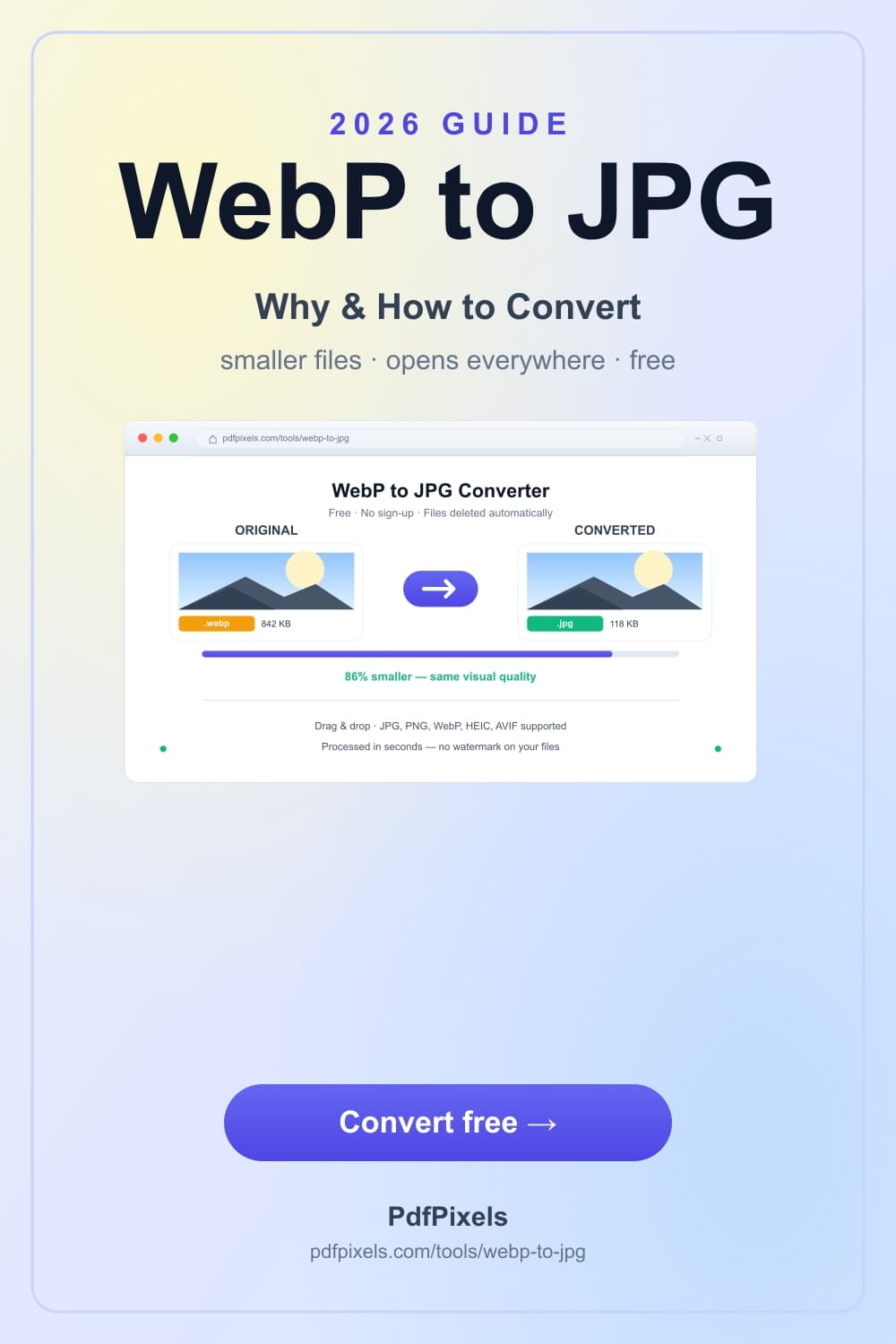
Vertical 2026 guide graphic showing a WebP file converting into a JPG with the file size dropping from 842 KB to 118 KB, no watermark
---
The Quality Settings That Actually Matter
If you only remember one number from this guide, make it 90. JPG quality 90 is the boundary where re-encoding artifacts — the blocky smudges around sharp edges, the banding in smooth skies — stay below what eyes can catch at normal viewing.
Below that, the trade-offs get real fast:
- Quality 85 — still clean on most photos; slightly smaller files. Fine for uploads.
- Quality 75 — noticeable softness on detailed images. Only worth it under a strict KB limit.
- Quality 40–60 — visible banding and skin smearing. Never send this to a client or a printer.
And if your real problem is a file-size cap rather than format rejection, converting alone may not be enough — resizing the pixel dimensions first is what preserves quality under tight KB limits. The full method is in our photo file-size guide. Format conversion and size targeting are different jobs; do them in that order.
---
WebP vs JPG in 2026: Where Things Stand
Three years ago, whether to keep WebP was a real debate. In 2026 the answer has settled:
- Browsers: universal. Every current browser decodes WebP.
- Phone galleries: mostly native. Screenshots and saved images increasingly *arrive* as WebP whether you asked or not.
- Desktop software: still patchy. Legacy tools, enterprise portals, and print pipelines lag years behind browsers.
- Social and messaging platforms: they re-encode to JPG internally anyway, so what you upload matters less than what arrives.
Which is a long way of saying: WebP won the delivery war, and JPG won the compatibility war. Until upload forms and office printers enter the same decade as browsers, converting between the two stays a daily skill. For the deeper format-by-format comparison — including where PNG fits — read WebP vs JPG vs PNG: which format to use.
Common Problems, Quick Fixes
- "My file won't upload even after converting." Check the extension actually changed to .jpg. Some tools hand back a WebP with a renamed suffix — the real test is whether the form accepts it.
- "The JPG is bigger than the WebP." Expected. WebP compresses better; the JPG trades bytes for universal acceptance. If size is the priority, keep the WebP for the web and convert only a copy for the portal.
- "Transparency disappeared." That is a JPG limitation, not a converter bug — JPG has no alpha channel. Transparent images belong in PNG; convert with WebP to PNG instead.
- "The colors shifted slightly." Rare, but it happens when the WebP carries a wide-gamut color profile. At quality 90 with standard sRGB sources, this does not occur.
Bottom Line
WebP is why the web loads faster, and JPG is why your files open everywhere. The friction between those two facts is permanent for now — and the fix is a fifteen-second conversion that keeps quality untouched. Run any file through the WebP to JPG converter, keep quality at 90, and get on with the form you were actually trying to submit.
Topics
Yuvi Parmar
Founder & Lead EngineerYuvi Parmar is the founder and lead systems architect of PdfPixels. Specializing in high-performance browser computing, WebAssembly document tooling, and media compression pipelines, all guides and technical tutorials undergo rigorous empirical testing across Windows, macOS, iOS, and Android to ensure absolute workflow accuracy.
FAQFrequently Asked Questions
How do I convert a WebP file to JPG?
Upload the .webp file to a free browser converter like PdfPixels WebP to JPG, and download the JPG — it takes about fifteen seconds. Keep quality at 90 and the output is visually identical to the original.
Is converting WebP to JPG lossy?
Technically yes — JPG re-encodes an already-compressed file. At quality 90 the difference is invisible in practice. Always convert from the highest-quality source you have rather than from a file that has been compressed repeatedly.
Why did my image save as WebP instead of JPG?
The website you saved it from serves WebP because it loads faster — Chrome and Edge save whichever format the site delivered. The file is fine; it just needs converting before apps and forms that predate WebP will accept it.
Is there a free WebP to JPG converter without a watermark?
Yes — PdfPixels WebP to JPG is free, adds no watermark, and needs no account. Files are processed ephemerally and deleted after conversion.
Can I convert WebP to JPG on my phone?
Yes. The converter runs in any mobile browser — iPhone and Android both pick WebP files from the gallery, and the JPG downloads straight to your device. No app installation needed.
Does converting WebP to JPG reduce quality?
Not noticeably at the right settings. Quality 90 JPG output is visually indistinguishable from the WebP source for typical photos. What does reduce quality is repeated re-saving — convert once from the original, not from an already-compressed copy.