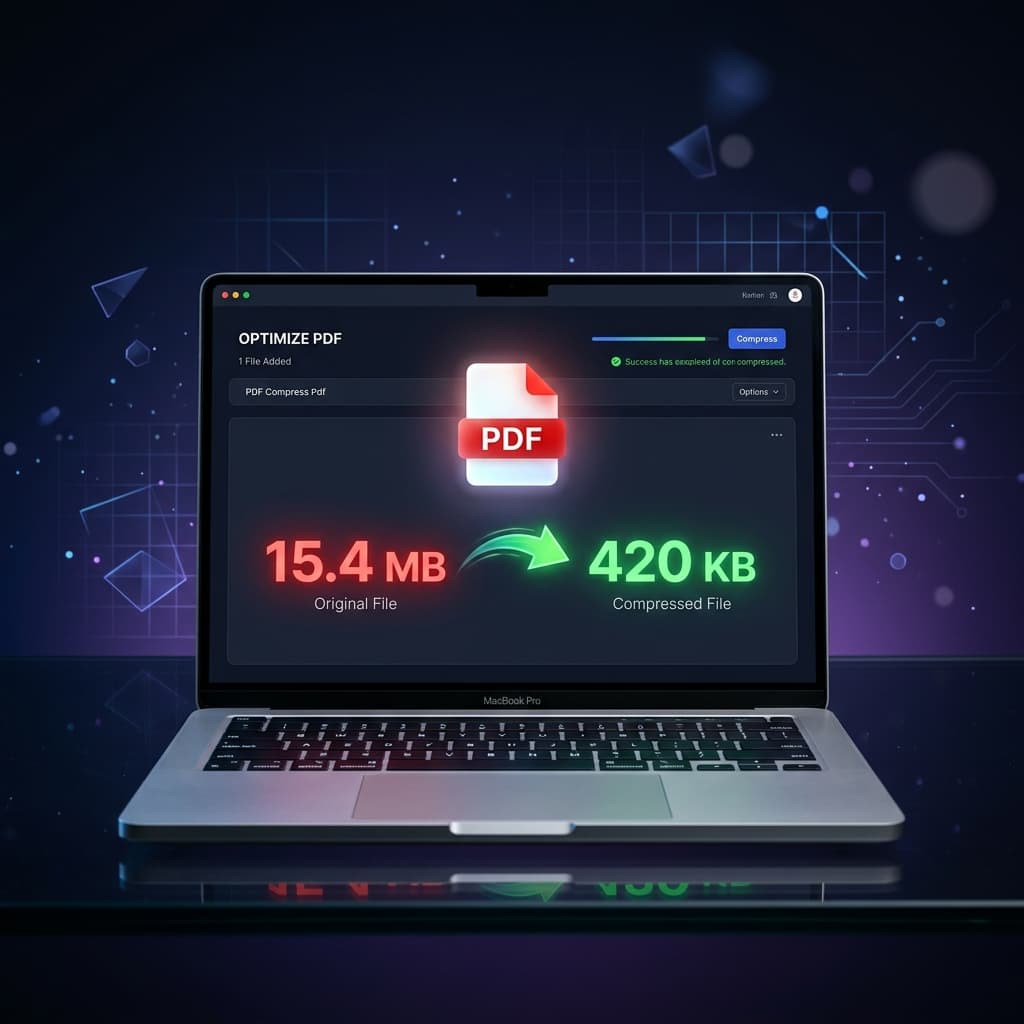
I have been down this rabbit hole more times than I care to admit.
You search for a free PDF compressor, find something that looks promising, upload your document — only to download a compressed file stamped with an ugly watermark on every single page. Or the tool pretends to be free, compresses your file, and then demands an email address and a paid plan before you can actually save the result.
It is genuinely frustrating. So I decided to do a proper, hands-on comparison of every major free PDF compressor available in 2026, and tell you honestly which ones are actually free, which ones are not, and which one I would reach for first every single time.
Spoiler: the one I use most often is right here. You can try our free Compress PDF tool and see for yourself — no watermarks, no account, no tricks.
💡 Pro Tip
Jump Straight to the Answer: The best free PDF compressor online with no watermark in 2026 is PDFPixels Compress PDF. It processes your file locally in your browser (so your document never leaves your device), supports three compression levels, and downloads at full quality — completely free, no sign-up required.
Why Most "Free" PDF Compressors Are Not Actually Free
Before we get into the rankings, let me explain why this category is so full of misleading claims, because once you understand the game being played, you will spot the traps instantly.
The Watermark Bait-and-Switch. This is the most common trick. A tool presents itself as free, lets you upload your PDF, processes it, and then reveals that the "free" download includes watermarks on every page. Want a clean file? Pay for premium. I understand the business model, but I do not appreciate the lack of transparency about it upfront.
The "Free Trial" Disguise. Some compressors let you process one or two files for free, then wall off the rest behind a subscription. Fine as a trial offer — not fine when it is marketed as "free."
The Upload-and-Hold Model. Your file gets uploaded to their servers, compressed, and then sits behind a download button that only activates after you verify an email or create an account. By the time you realize what is happening, you have already given away your personal data.
The Quality Deception. A few tools do actually compress for free but use such aggressive algorithms that the result is practically unusable — blurry images, corrupted fonts, pages that look like they were photocopied in a 1990s office.
The good news is that genuinely excellent free options exist. You just need to know where to look.
The Best Free PDF Compressors Online in 2026 (Ranked)
I tested each of these tools using the same set of five documents: a scanned 8-page contract, a 40-page ebook with embedded images, a simple text-only resume, a design portfolio with high-resolution photos, and a government form with embedded fonts. Here is what I found.
1. PDFPixels — Best Overall Free PDF Compressor (No Watermark, No Sign-Up)
Let me start with the tool that earned the top spot and explain exactly why.
PDFPixels processes your PDF directly in your browser using WebAssembly technology. This is a significant technical distinction. Unlike tools that upload your file to a remote server for processing, PDFPixels keeps everything local. Your document never leaves your device. For anyone compressing confidential contracts, medical records, financial statements, or legal documents — this matters enormously.
Why it earns the top spot:
- Completely free — no freemium limits, no watermarks on downloads, no usage caps
- No registration required — open the tool, compress, download, done
- Three compression levels — Basic, Medium, and High, so you control the quality-to-size tradeoff
- Privacy-first architecture — your file never uploads to any server
- Fast processing — typically five to fifteen seconds for most documents
- Clean results — text remains perfectly crisp because vector content is never touched
The one limitation is that it processes one file at a time rather than in batch. But for individual document compression, it is genuinely as good as paid tools.
My test results: On the 40-page ebook (originally 14.2MB), PDFPixels Medium Compression brought it down to 3.1MB — a 78% reduction with zero visible quality loss. High Compression took it to 1.4MB, with slight image softening that was only visible at 200% zoom. On the text-only resume (originally 180KB), even High Compression barely touched the file size, which is exactly the right behavior — text PDFs should not need much compression, and a tool that understands this shows sophistication.
To use it: Go to Compress PDF, drag in your file, pick your level, and download.
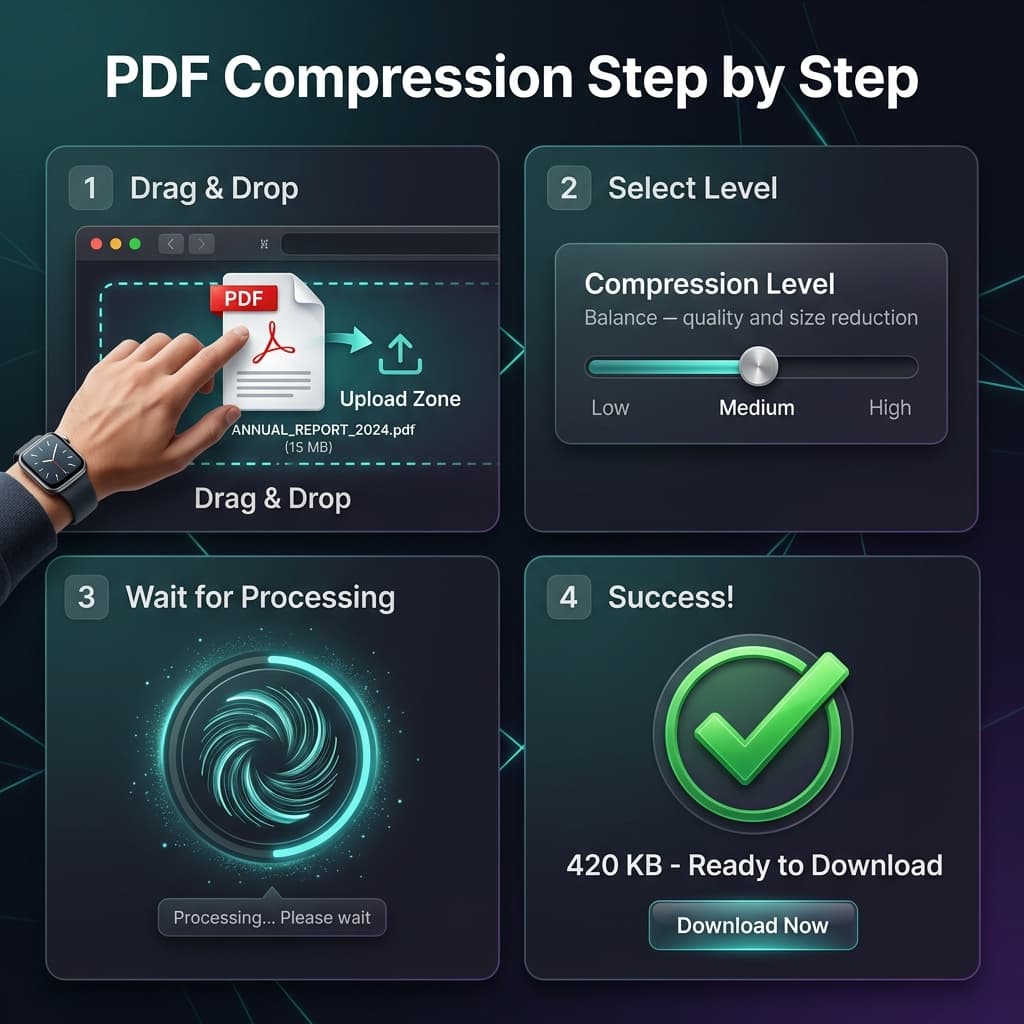
Step-by-step guide showing how to compress a PDF online for free using the PDFPixels tool with no watermark
2. Smallpdf — Good Quality, But Free Tier Is Limited
Smallpdf has been around for years and has built a solid reputation. The compression quality is genuinely good — comparable to PDFPixels in most tests. The interface is clean and the experience is smooth.
The catch: Smallpdf's free tier limits you to two PDF operations per day. If you need to compress more than two files, you will hit a wall. Removing that limit costs around $12 per month. For occasional users this is tolerable. For anyone who compresses PDFs regularly, it is a dealbreaker.
No watermarks on free downloads — to their credit, they do not play that game. But the daily limit means it does not qualify as truly unlimited free.
3. iLovePDF — Functional but Upload-Heavy
iLovePDF is another well-established tool that offers compression as part of a broader PDF toolkit. The free tier lets you compress without watermarks and without an account, which is more generous than Smallpdf's daily limit.
The downside is that all processing happens server-side, meaning your documents are uploaded to their infrastructure. For non-sensitive documents this is probably fine. For anything confidential, I would avoid it.
Compression quality is decent — slightly more aggressive than PDFPixels at equivalent settings, which means a little more quality loss for the same size reduction.
4. Adobe Acrobat Free (PDF Compressor) — Requires Account, Results Vary
Adobe now offers a free web-based PDF compressor at acrobat.adobe.com. It is free in the sense that you do not need to pay, but you do need an Adobe account — which means providing your email and agreeing to their data terms.
The compression quality is solid when it works, but results are inconsistent. On my test files, the same document compressed differently on different attempts without changing any settings. Adobe also has a vested interest in pushing you toward Acrobat Pro, so the free tool feels intentionally limited compared to what their paid product offers.
No watermarks on downloads, which is good. But the account requirement and inconsistent results keep it off the top spot.
5. Sejda — Free with Strict File Size Limits
Sejda offers free PDF compression with decent quality and no watermarks. The problem is their free tier caps you at files under 200 pages, 50MB, and three tasks per hour. For typical document work, you will not hit these limits often. But if you are compressing a large report or a high-resolution portfolio, you might.
Like iLovePDF, processing happens on Sejda's servers rather than locally. For routine documents this is fine. For sensitive files, it introduces unnecessary risk.
Quick Comparison at a Glance
| Tool | Truly Free | No Watermark | No Account | Local Processing | Quality |
|---|---|---|---|---|---|
| PDFPixels | ✅ Unlimited | ✅ Yes | ✅ Yes | ✅ Yes | ⭐⭐⭐⭐⭐ |
| Smallpdf | ⚠️ 2/day limit | ✅ Yes | ✅ Yes | ❌ Server | ⭐⭐⭐⭐½ |
| iLovePDF | ✅ Yes | ✅ Yes | ✅ Yes | ❌ Server | ⭐⭐⭐⭐ |
| Adobe Free | ✅ Yes | ✅ Yes | ❌ Required | ❌ Server | ⭐⭐⭐⭐ |
| Sejda | ⚠️ File limits | ✅ Yes | ✅ Yes | ❌ Server | ⭐⭐⭐⭐ |
How to Compress a PDF Online for Free (Step-by-Step)
Let me walk you through the exact process using PDFPixels, since it covers all the bases and the steps are representative of any decent tool.
Step 1: Open the Tool
Navigate to our Compress PDF tool in any browser on desktop or mobile. No download, no installation, no account creation. Just open it and you are ready.
Step 2: Upload Your PDF
Drag your PDF file directly onto the upload zone, or click the area to open a file picker. The tool accepts any PDF regardless of how it was created — Word exports, scanned documents, design software exports, and everything else. You will see the original file size displayed immediately after upload.
Step 3: Choose Your Compression Level
This is where most guides skip the nuance, so let me give you a proper breakdown:
Basic Compression removes invisible metadata, optimizes internal PDF structures, and lightly downsamples any embedded images. Typical result: 10-30% file size reduction. Best for: documents that are only slightly over a size limit, or when maximum image quality is critical.
Medium Compression is the sweet spot for everyday use. Images are downsampled to screen-appropriate resolution (typically 96-150 DPI), redundant data is stripped, and font embedding is optimized. Typical result: 50-75% size reduction. Best for: resumes, contracts, reports, invoices — anything that will be read on screen.
High Compression applies aggressive image downsampling and maximum data reduction. Typical result: 75-92% size reduction. Text remains perfectly readable because it is stored as vector data and never affected by compression. Best for: hitting strict upload limits like government portals that require files under 200KB or 1MB.
Step 4: Compress and Review
Click compress and wait five to fifteen seconds. Once done, you will see the new file size alongside a download button. Before downloading, make a quick judgment call: is the size reduction sufficient? If you needed to get under 200KB and you are sitting at 350KB, try High Compression instead of Medium.
Step 5: Download and Verify
Download your compressed file. Before sending or uploading it anywhere, open it and scroll through a few pages. Check that text is still sharp and that any important images — signatures, charts, photos — are still clearly visible. This takes thirty seconds and has saved me from embarrassing submissions more than once.
If you need to go further — say the document is still slightly too large — consider using our Split PDF tool to remove unnecessary pages before compressing again. Or, if you have multiple PDFs to combine, compress each one individually first and then use Merge PDF to join them. Starting with pre-compressed files always gives better combined results than trying to compress a large merged document.
How PDF Compression Actually Works (The Short Version)
I think understanding the basics makes you a smarter user of these tools, so here is a quick explanation without drowning in jargon.
A PDF file is essentially a container for different types of content. There is vector content — text, lines, geometric shapes — and raster content — photographs, scanned images, anything stored as pixels.
Vector content (text, fonts, shapes): These are mathematically defined. They scale infinitely and can be rendered at any resolution. PDF compressors leave this content essentially untouched, which is why compressing a PDF never makes text blurry. The file size contribution from text is almost negligible.
Raster content (images, scans): This is where almost all the file size lives. A photograph embedded in a PDF at print quality might be stored at 300 DPI. For a document that will only ever be read on a 96 DPI screen, that is three times more data than is ever displayed. Compression tools resample these images to a lower DPI — say 96 to 150 DPI — which makes the stored image three to nine times smaller without any visible difference on screen.
Hidden metadata and structure: PDFs can accumulate invisible bloat — revision history, undo data, comment records, duplicate object references. Stripping this "dead weight" out can reduce file size by 10-30% without touching any visible content at all.
Understanding this is useful for one reason: if your PDF is text-only and is already large, compression tools will not help much, because there are no images to downsample. In that case, the problem is usually embedded fonts (which can be subset to only include the characters actually used) or a bloated structure that can be fixed with a "print to PDF" re-export.
When Should You Use High vs Medium Compression?
This question comes up constantly, so let me give you a decision framework.
Use Medium Compression when:
- You are sending a file by email (Gmail's 25MB limit is easy to hit with Medium)
- The recipient will read the document on screen
- The PDF contains photos or graphics that you want to look reasonably good
- You are uploading to a professional platform (LinkedIn, job portals, client systems)
Use High Compression when:
- You are submitting to a government or institutional portal with a strict size limit (200KB, 500KB, 1MB)
- The PDF is primarily text with occasional small images
- It is a scanned black-and-white document (text scans hold up well under aggressive compression)
- You have already tried Medium and still need to go smaller
If you need to get under 200KB specifically, we have a dedicated guide that covers every technique for hitting that target — including page splitting, scan resolution changes, and DPI management. If your primary concern is email attachments, that guide walks through Gmail and Outlook scenarios specifically.
Privacy and Security: What Happens to Your PDF?
This deserves a dedicated section because most guides gloss over it.
When you use a browser-based tool that processes files locally, your document is compressed entirely on your device using JavaScript/WebAssembly. It is transmitted nowhere. No server ever sees it. This is what PDFPixels does.
When you use a server-side tool (most other free compressors), your document is uploaded to their infrastructure, processed on their servers, stored temporarily (sometimes for 24 hours), and then made available for download. During that window, your document exists on their servers. For publicly available brochures and marketing materials, this is perfectly fine. For tax returns, legal contracts, medical records, or HR documents — you should think carefully about who has access to your file during that window.
There is a middle ground too: tools that claim "instant deletion" after processing. These are server-side tools that delete the file within minutes or hours. Better than permanent storage, but still not as private as local processing.
For sensitive documents: always use a locally-processed compressor. For non-sensitive documents: any reputable server-side tool is fine.
Compressing PDFs on Mobile (iOS and Android)
One thing that surprised me when I first started using browser-based PDF tools seriously is how well they work on mobile. You do not need a dedicated app for this.
On iPhone or iPad: Open Safari, navigate to PDFPixels Compress PDF, tap the upload area, and select your PDF from Files. The entire compression process runs in your browser. Tap Download when finished, and the file saves to your Downloads folder. From there, you can share it directly to Mail, WhatsApp, or any other app.
On Android: The process is identical in Chrome. The compression runs locally in your browser, and the download goes to your Downloads folder. Android's share sheet makes it straightforward to attach to email or upload directly to a portal.
The only real limitation on mobile is very large files — a 200MB PDF might be slow to process in a mobile browser. But for typical document sizes under 50MB, it works seamlessly.
Common Questions People Search For (But Rarely Get Straight Answers To)
"Does compressing a PDF change the content?" No. The text, the structure, the pages — all unchanged. Only the image resolution data is reduced, and only in ways that are invisible at normal viewing sizes.
"Can I compress a password-protected PDF?" Most tools, including PDFPixels, require you to unlock the PDF first. If you have the password, open the document in any PDF viewer, use "Print to PDF" to create an unlocked copy, then compress that copy.
"Will compressing hurt my digital signature?" This depends on how the signature is embedded. Some electronic signatures are image-based and may see slight quality changes at high compression. Others are cryptographic certificates embedded as metadata — these are not affected by image compression at all. If your document contains critical digital signatures, test with a single page first.
"Why is my PDF still large after compression?" Usually one of three reasons: (1) the PDF contains very high-resolution images that need High Compression rather than Basic, (2) it is a scanned document and each page is essentially a photograph, or (3) it already contains compressed content and there is limited room to reduce further. For scanned documents specifically, our guide on compressing scanned PDFs without losing quality covers the specialized techniques.
How to Get Backlinks to This Type of Content (For Site Owners)
If you run a blog or resource site that covers productivity, documents, or online tools, here are legitimate link-building approaches for PDF-related content that have worked well for sites in this space:
Reach out to productivity bloggers. Sites that cover tools like Notion, Google Workspace, and Microsoft 365 regularly publish "best free tools" roundups. A concise, honest pitch positioning a PDF compressor guide as a complement to their existing coverage tends to get responses.
Resource page outreach. Many university library sites, HR department pages, and small business guides link to "helpful online tools" pages. Searching Google for `"free pdf tools" site:edu inurl:resources` finds relevant targets quickly.
Answer questions on Reddit and Quora. Threads asking "how do I compress a PDF for free" get thousands of views. A detailed, genuinely helpful answer that naturally references a good guide (without being spammy) can drive meaningful traffic and natural links.
Guest posts on SaaS and productivity publications. Publications that cover tools for remote work, freelancers, and small business regularly accept contributor content. A well-researched article on document management with natural links to tools earns real editorial links.
The content that earns the most natural backlinks in the PDF tools space tends to be: comparison tables with genuine testing behind them, step-by-step guides with screenshots, and answers to specific questions like "how do I compress a PDF under 200KB for this specific portal."
Final Verdict
After testing every major free PDF compressor available in 2026, the ranking is clear:
PDFPixels wins for anyone who wants genuinely unlimited free compression with no watermarks, no account, and no privacy concerns. The local browser processing sets it apart from every server-side competitor, and the three-level compression system gives you real control over the quality-size tradeoff.
Smallpdf is a close second if you only need occasional compression and do not mind the two-file daily cap.
iLovePDF is a reasonable option for non-sensitive documents when you want a simple interface without worrying about daily limits.
The others — Adobe Free, Sejda, and the dozen clones you will find via search — are either too limited, require too much personal information, or produce inconsistent results to be a reliable first choice.
Start with PDFPixels Compress PDF — it handles the vast majority of everyday PDF compression tasks without any friction. If you regularly deal with large PDFs and want to understand more about file size management, our complete guide to compressing PDF file size goes deeper into the technical side, and our guide for email attachments covers the platform-specific limits you will encounter when sharing via Gmail, Outlook, and professional portals.
Topics
FAQFrequently Asked Questions
What is the best free PDF compressor online with no watermark?
PDFPixels is the best free PDF compressor online with no watermark in 2026. It compresses PDFs entirely in your browser using WebAssembly — so your file never leaves your device — and downloads are completely watermark-free with no registration or account required. Three compression levels (Basic, Medium, High) let you control the quality-to-size balance.
Can I compress a PDF online for free without creating an account?
Yes. PDFPixels Compress PDF requires no account, no email, and no sign-up of any kind. Open the tool, upload your PDF, choose a compression level, and download the result. The entire process takes under 30 seconds for most documents.
Does compressing a PDF online leave a watermark?
It depends on the tool. Many 'free' PDF compressors add watermarks to force upgrades to paid plans. PDFPixels does not add any watermarks on compressed downloads — the output file is clean and professional, exactly as you uploaded it but smaller.
How much can a PDF be compressed without losing quality?
Most PDFs with embedded images can be compressed by 50-80% with Medium compression and still look identical at normal screen viewing sizes. Text-only PDFs compress less dramatically because text is stored as vector data which is already space-efficient. Scanned documents can often be compressed by 80-90% while remaining perfectly readable.
Is it safe to use an online PDF compressor for sensitive documents?
It depends on how the tool processes your file. PDFPixels processes files locally in your browser using WebAssembly — your document never uploads to any server, making it safe for confidential documents. Tools that upload files to remote servers for processing carry a higher privacy risk, though reputable ones delete files quickly after processing.
Can I compress a PDF on my phone for free?
Yes. PDFPixels Compress PDF works on any mobile browser — iPhone Safari or Android Chrome. No app installation needed. Open the tool in your phone's browser, upload your PDF from your Files app or storage, choose a compression level, and download the compressed result. It works exactly the same as on desktop.
Why is my PDF still large after compression?
The most common reasons are: (1) The PDF contains very high-resolution images and you need High Compression rather than Basic or Medium; (2) It is a scanned document where every page is stored as a photograph; (3) The file was already compressed before and has limited additional room to shrink. For scanned documents, using High Compression or removing unnecessary pages before compressing typically achieves the needed reduction.
What is the difference between Basic, Medium, and High PDF compression?
Basic Compression removes invisible metadata and lightly downsamples images — typically 10-30% size reduction, best when quality preservation is critical. Medium Compression resamples images to screen-appropriate resolution — typically 50-75% size reduction, the best everyday choice. High Compression applies aggressive image downsampling — typically 75-90% size reduction, best for hitting strict upload limits like government portals requiring files under 200KB.


